Loco Translate – translation power for WordPress [Review]
Hello friends,
I have already created a review for one great (and free to use) plugin that will allow you to translate your website and also to make it bilingual or multilingual. This can be achieved by using QtranslateX. Make sure to read this post by clicking here.
But in this post I will make you familiar with a similar plugin that is focused on helping you translate your WordPress website with extreme ease. This plugin is called Loco Translate.
What does Loco Translate do?
Translation! This is its main purpose. As you know some plugins and themes are created in one language only and this may not be suitable for you, your clients (if you are creating a website for them) and especially for the target visitors and future customers. Another very common situation is that there may be some translations provided but your target language is not yet supported.
In both situations you need to figure it out how to translate the specific plugin or theme. There are different ways to achieve this, however you may discover that Loco Translate is one of the best ways to do it. Mainly because it is super easy to use and also because it is already part of your website (since it is a WordPress plugin). This means that you will not be needing any additional software and/or tools to transform each non-translated section of your website to the correct language.
How to use Loco Translate?
Begin by downloading it from WordPress.org or by using the plugin installer system in the admin panel of your own website. Then activate Loco Translate and click on the newly created menu that has the same name. There you will see several sub-menus:
- Home – here you will see all of your installed themes and plugins that have provided translation files. This means that you will be able to start translating them by clicking on the link with the name of the plugin/theme;
- Themes – a list only with the themes that may be translated;
- Plugins – the same but this time focused on plugins only;
- WordPress – the ability to translate WordPress itself. If you are not aiming at using some extremely rare language then you should see 100% translation or similar number for your chosen one;
- Settings – here you may change the way Loco Translate functions;
This plugin also creates an additional user role, called Translator which means that you may provide access to specific people in order to translate your website if needed.
Now let’s click on one plugin or theme in order to start translating it. You can do this from the Home sub-menu or one of the two other options regarding your choice. You should see three tabs:
- Overview – providing the current translation files so that you may choose from them for edit or create a new one;
- Setup – here you can see the status of the bundle auto-configuration. This tab also provides you with the possibility to make advanced configuration, import config from XML, check config repository and get help if needed. The Author details are specified here as well;
- Advanced – some advanced settings for the current object that you will be translating. From this tab you will be able to download XML config if needed;
So click on the language that needs translation in the Overview tab or create a new language. Bear in mind that you can also get info on each available translation as well as its percentage of completion. You will also be able to delete translations.
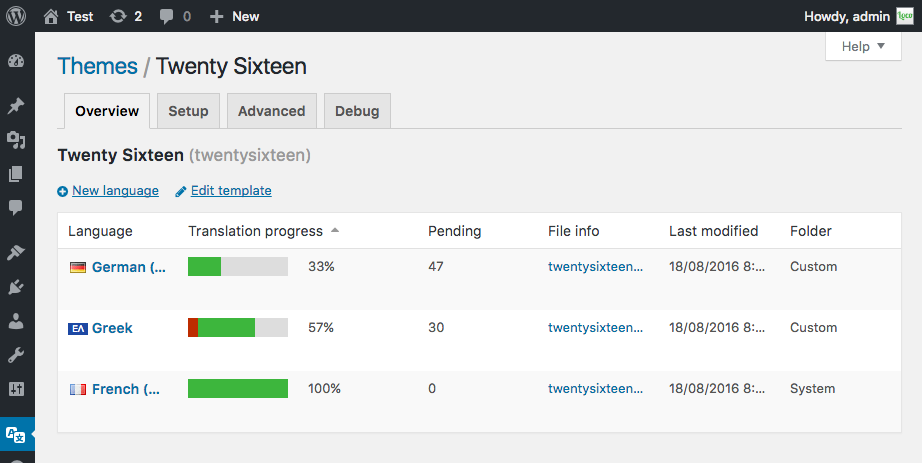

When you do this you will see the Source text and each translatable string is on a different line. Click on one of the strings. In the field below this list you will see the current source text for the selected string and further below is the field with the translation for the selected language. It may be empty or translated incorrectly. In both ways you will be able to add the correct translation and then save your work by clicking on the blue “Save” button at the beginning of the screen. From here you will also be able to download the *PO and *MO files which may be useful for using them on different websites with the same plugin/theme as the one you are translating currently.
For each language you will also see several tabs:
- Editor – the tab that I have just described;
- Source – the source of the translation;
- File Info – some information about the percentage of translation, the name of the last translator, the last modified date and additional information;
- Delete – permanent deletion of the translation;
When you are done translating you may sync your work with the repository, download the translation files and most importantly – utilize the translation that you have created. Bear in mind that WordPress has to be set for the target language in order to see your translation text. This is done in the Settings menu in your admin panel.
What do you think about Loco Translate friends? Will you use it? Share your feedback in the comment section below and help us reach more users like you that are in need for a great plugin for WordPress translation. Do this by sharing this post in social media.
Thank you and see you soon!
*The images are embedded from the WordPress.org page of Loco Translate
Loginizer [Review]
Hello friends,
You may have noticed that WordPress security is an important topic here on TheCMSPlace. And this is not just something that we like to write about – it is really important. Why? Well because you may spend hours, days, weeks and even years maintaining your website and filling it with high quality content and one day you may find it destroyed due to a hack. And this is something that should not happen. That is why WordPress security should be a high-priority topic for any user and webmaster and you should always make backups.
In this post I am going to make a review on one plugin that helps improve the login security of WordPress. It is called Loginizer.
What does Loginizer do?
It protects against bruteforce attacks. They are aimed at trying different combinations of passwords until they figure out a correct combination and therefore provide the hacker (who launched them) access to your website. Now you may imagine what might happen if your admin account is revealed.
So in order to prevent this from happening you need to take care of some things – first of all don’t use “admin” as a username for any admin account on your website. Second – use as complex passwords as possible. Third – add a protection like Loginizer.
How does Loginizer work?
By providing login attempts limitation for any IP. This means that if a bruteforce attack is launched from one IP the hacker may be able to guess your passwords only several times. Then this IP is blocked. You can also select IP addresses that you consider dangerous and add them to a blacklist using Loginizer. This means that any potential attack from them won’t even start since the access will be blocked in advance.
What about any IP addresses that are considered safe? You can whitelist them and Loginizer won’t be a problem. Make sure that your own IP is added to this list so that you can make sure that you will get access anytime you want to your own website.
That’s great! How to use Loginizer?
Begin by visiting the official WordPress.org page of the plugin. From there you can download it and the install it on your own website manually or you may search for Loginizer using the built-in WordPress plugin installer in your dashboard (admin section).
Then activate it and you will receive a new menu called Loginizer Security. It contains two sub-menus:
- Dashboard – which contain information about your system
- Brute Force – which contain the options for Loginizer
In the first sub-menu you may want to check the section where your File Permissions are displayed. Make sure that your permission scheme matches the suggested one by Loginizer. Check carefully your system information as well.
In the Brute Force sub-menu you have to adjust some settings:
- Max Retries – default value is 3;
- Lockout Time – default is 15 minutes;
- Max Lockouts – default is 5 times;
- Extend Lockout – default is 24 hours. This extends Lockout time after Max lockouts;
- Reset Retries – 24 hours (default value);
- Email Notification – here you may add a number of lockouts that should occur before the system notifies you for them via email. Default value is 0 times (i.e. email notifications are disabled);
Here you have to add your Blacklist and Whitelist IP addresses. You may also add ranges.
At the top of the Brute Force sub-menu you will see any failed login attempts in the past 24 hours. The information provided is the number of the attempt, the IP it came from, the date and hour of the attempt, count and lockout counts for this attempt.
You may also remove information from these logs or clear them at all.
Loginizer is great! How can improve my protection further?
You have 2 options:
- consider purchasing the PRO version of Loginizer which adds additional security features like captcha, two-fores auth and others;
- install additional free plugins that will improve your security;
And that’s all friends! What do you think about Loginizer? Share any thoughts, feedback, questions or problems in the comment section below. Don’t forget to spread the word about this post in social media as well. By doing this you will help other users like you to improve the security of their WordPress websites.
See you soon, friends!
Gallery [Review]
Hello friends,
Nowadays most websites need a great gallery plugin in order to display images with style for their visitors. That is why in this post I will present to you one solution that might be just the one you have been always looking for.
This WordPress plugin is called Gallery.
What does Gallery do?
The name of the plugin says it all. This is a gallery plugin for WordPress that will allow you to showcase your images with style. However it is not only limited to this.
Gallery is able to provide you with a set of tools and different options so that you will be able to add all of your images and also to edit them. That’s right – with this plugin you are not only uploading and adding images to posts and pages but you are also able to show them in the desired ways.
Another important feature of Gallery is that it allows you to add tags so that you can organize your images correctly. No more searching for old and long forgotten uploads – just view the appropriate tag and you are done. And speaking of organizing – tags are just part of this functionality! Gallery is able to create different albums with your images and you can also have multiple galleries into different albums as well. Then you have the option to add not only selected images to your posts and pages but also entire albums. Great, isn’t it?
The editing process for your uploads in Gallery is able to provide you with all the needed features in order to adjust your images for different views. Also this WordPress plugin is 100% responsive. Yes, this means that it is optimized for any screen on any device which is great considering the continuously growing importance of SEO optimization of any website for mobile devices.
Gallery also utilizes the power of additional plugins in order to give you a complete product that will serve you as intended. You are also presented with a number of widgets that you may add to the different widget areas on your website for aiding your user experience design strategy.
There are also different premium add-ons for Gallery.
One of them is called the Ecommerce Add-on. With it you are able to create your very own digital store for selling images and prints. The creation process is straightaway and when you are done you can manage it with different options on advanced level so that you can achieve your goals.
With the Ecommerce Add-on your new store can provide visitors with prices for your images and prints. This is achieved by the possibility to create unlimited price lists that you can easily connect with your galleries and/or individual images. You are also able to specify the ways your digital downloads are going to be delivered. More specifically – this relates to the quality of the image that is sold. This means that your customers will be able to choose from different resolutions of the image that they want to purchase and download.
Now you may be wondering how you are able to actually receive the money from each purchase (i.e. how to provide this functionality to your digital store). Well Gallery with its Ecommerce Add-on allows you to choose from Stripe or PayPal. This means that these payment systems can be integrated on your website and you can start selling and receiving money straight away. And since this is a digital store and you will be most likely selling many digital copies of your images then the access to the purchased content is instant 24/7!
What other add-ons are available for Gallery?
You may consider checking out the Facebook Integration Add-on which aims at the ability to add images from your Facebook page albums directly on your WordPress website using Gallery. Now you can do this instantly using this premium add-on.
Another interesting choice is the premium Export/Import Add-on which allows you to move images, galleries and albums from one domain to another with extreme ease. This procedure will save you tons of time and effort compared to the manual creation of the same galleries, making the same uploads and adding the same options.
Now let’s speak about the views that you can provide for your images when using Gallery.
You have various options. From thumbnails to blog style gallery view. Some of these views are available in the free version of the plugin and others are for the commercial one. All of them are displayed on the WordPress.org page of the plugin.
How to start using Gallery?
Download the free version from WordPress.org and upload it on your website. An easier alternative is to use the plugin installer in your WordPress admin panel to search for Gallery and install it. Then activate the plugin and start adjusting its options. You may find useful tips in the following video:
And that’s all friends! What do you think of this plugin? Will you try it? Share any thoughts, questions and/or feedback in the comment section below. Also don’t forget to share this post in social media as well.
See you soon, friends!
*The images and the video are embedded from the WordPress.org page of the plugin.
Captcha by BestWebSoft
Hello friends,
Improving the security of your WordPress website is important. One way to achieve this is to avoid any potential spam content that may appear on it. For this purpose you need a solution that will just do its job as intended. A plugin that will protect any form on your website from spam entries.
Such solution exists! It is called Captcha by BestWebSoft and in this post I will present it to you.
What is Captcha by BestWebSoft?
This is a WordPress security plugin that uses math logic in order to prevent spammers to fill your website with spammy content. Each entry has to pass the captcha verification in order to appear on it.
Captcha by BestWebSoft also helps you for improving the security of any login & registration forms. But that’s not all! This marvelous plugin can also help you fight spam when it comes to password recovery and it can also be used in cooperation with some of the known contact form solutions that exist for WordPress.
How does Captcha by BestWebSoft work?
Well, it’s actually quite simple. When the plugin is installed and activated it starts showing up on your website (on your forms more specifically). Then when a user wants to add an entry they have to solve a math equation. If the result is correct, the content is approved for the specific form. If not – the spam is blocked and your website is protected. Simple, right?
How to use Captcha by BestWebSoft?
Begin by following the standard procedure of installing and activating a WordPress plugin. Do this by using the built-in installer (search for the plugin there) or download it from the official WordPress.org website. Then make sure that the plugin is installed and activate it.
Finally you need to head to BWS Panel -> Captcha. You can find this in your WordPress admin panel. Click on this menu and you will be presented with the available options for Captcha by BestWebSoft. Bear in mind that all of the steps that we will be looking at right now are related to the free version of the plugin. I will mention the benefits of upgrading to PRO later in this post.
Now when you are on the settings page you should be seeing 4 tabs. The first one is Settings and here you have different sub-menus that are related to different settings. Let’s start with the General Options. Here you are able to configure the math equation settings. Here you are also able to adjust the captcha position and create the error messages that will appear if the solution is wrong. On this sub-tab you are able to adjust some other important options as well.
Next is the options for the WordPress Login form and the Registration form. These two sub-tabs are similar in design and both can be extended using the PRO version.
Then you have the WordPress Password Reset form. It is also similar to the two ones above. There is a little difference for the options related to the Comments form (the next sub-tab). You are actually able to hide any captcha’s from the registered users if you consider them trustworthy.
The next sub-tab is related to the Contact Form from the same developer team. If you install and activate it you will be able to adjust some options so that you could benefit from both plugins.
Below you have several sub-tabs that are locked in the FREE version. So before heading to the next available tab you should click on “Save Changes”.
Next is Packages but it is also locked in the FREE version. So head to the Whitelist tab in order to add a list of IP addresses that will prevent the captcha to be shown when visiting the site from them. Please, consider adding only IP addresses that you are 100% sure that are safe.
The next tab is called Custom code and here you can do what its name suggest – custom CSS and PHP code. This is a section for advanced users only so I suggest using it only if you know exactly what you want to achieve by doing so.
So this is all that you get from the free version of Captcha by BestWebSoft. It should be more than enough for most of the websites but just in case you want to get the real power of this wonderful plugin you can click on the blue button named “Go PRO” and upgrade.
In the PRO version of Captcha by BestWebSoft you will get:
- bigger compatibility with other major WordPress plugins like Contact Form 7, BuddyPress and WooCommerce
- unlock all of the additional options for the different settings
- better support
- usage of multisite network for the configuration of sub websites and more
And that’s it friends. Now it’s up to you. Please share any questions and feedback in the comment section below and if you like Captcha by BestWebSoft consider giving it a higher rating on WordPress.org.
In the mean time you can also watch these two great videos:
The first one presents Captcha by BestWebSoft in a brief way so that you can see what you are going to get:
The second is about the installation process of the plugin:
See you soon friends and don’t forget to share this post is social media as well.
Show icons for your WordPress download links [Tutorial]
Hello friends,
Have you noticed that on some websites you are able to click on a download link that has an icon as well as text (or just an icon)? Do you want to add such links on your WordPress website? If the answer is “Yes” then you are on the right post at TheCMSPlace.com because in it I will show you a couple of ways to achieve this.
Let’s begin with the manual way of adding icons for your WordPress download links:
First of all you need to search the web and find a suitable icon for your download links. You can also add multiple icons if you are going to provide downloads for various documents. Another handy trick is to use only one unique icon that represents the download functionality.
Speaking of suitable icons you should consider different situations:
- Image type and size – if possible use high quality images in PNG, GIF or JPEG format and also make sure that you have optimized them in terms of image size and file size. Basically a download link should not take too much space from any page/post and it also should not burden the loading times of that page/post.
- Image license – you should only use images that have a license which has no (or few) restrictions (like CC0) or purchase images with license suitable for all types of usage (especially commercial if your goal is to monetize on your website). Respect the author rights by all means!
- Image content – here the goal is to decide whether you’d like to have one unique download image that should be suitable for all download types or use different images for the different files and documents that your visitors should be able to download from your website.
Having all of these figured out leads us to the next situation – how to add the images to your WordPress website and how to make them as download links.
The first part is quite easy – you just upload the image to your WordPress library and then add it to a post/page at a location of your choice. The “tricky”part is the download link. Basically you can also use the default WordPress functionality to add a link to an uploaded file on your website or at a different location. However in most cases the download dialogue of the browser will not show and the browser will try to open the file in a new window/tab. This might be troublesome especially with PDF files which can be read by any browse out of the box.
To evade this situation (unless of course your goal is to allow the browser to display the file in a new tab/window) you should add the following link structure:
<a href="file link" download target="_blank"><img src="YOUR FILENAME" alt="YOUR ALTERNATIVE TEXT" style="width:Xpx;height:Xpx;border:X;"></a>
This should work flawlessly with most browsers (especially Firefox and Chrome) and should force the “Save As” dialogue instead of opening the file in new window. However in some older versions the above method may not work correctly.
In the example above you should add the filename of the image, an appropriate alternative text (very important for SEO purposes) and replace X with suitable numbers in the style section of the link structure. Bear in mind that you may need to use the WordPress Text editor to edit an already created image link so that it fits the above example.
And that’s it for this method, friends. You may find it not so much user-friendly especially for WordPress beginner users. That is why you can use another way to achieve a similar effect. In this case you will need the plugin MimeTypes Link Icons.
Download, install and activate it like you always do with WordPress links. Then head to Settings -> MimeType Icons and adjust the image size, image type, and the display position of your image links. The image types that you are able to select from are GIF and PNG. You are also able to add unique images for the different different file downloads.
The advanced settings of this plugin will allow you to modify CSS options. And that’s basically it. Now the plugin will search for any text links that may point to a file that is intended to be downloaded and will add the suitable icon next to that link.
And this information should be enough so that you can start adding download links with icons for your WordPress website. The example in the first method is also suitable for text links as well. Just use download target=”_blank (again added using the Text editor).
What do you think, friends? Do you consider this information enough? Or maybe you know some other ways of achieving this? Share any thoughts, feedback and questions on that matter in the comment form below. Don’t forget to spread the word about this post in social media as well.
See you soon, friends!
WP Maintenance Mode [Review]
Hello friends,
Any user who starts using WordPress will eventually discover its built-in maintenance mode. It is activated for a short periods of time when an update for the system is being installed. This may happen with plugins, themes and especially with WordPress’s core installation. During this maintenance mode the website is not available for the visitors and if the updates are successful it will self-deactivate. And this is basically its whole functionality – to prevent access to a website that may not be working correctly due to incomplete updates and/or configurations.
In this post I will present to you one plugin that will allow you to achieve the same effect but this time under your full control. This means that you can decide when to enable the maintenance mode or to disable it, who to access your website, how it will look like and so on.
This plugin is called WP Maintenance Mode.
Why do I need an additional plugin when WordPress has already a built-in functionality?
You may need WP Maintenance Mode for two reasons. First the default maintenance mode might disable access to the website even for you (if you are its admin) in case the updates are a failure. There is a trick to fix this but I will leave it for another post. The main idea is that this mode will be available only if you are updating your website and not a single second more. Also it looks awful! But since it is on for a couple of seconds (or minutes depending on the speed of the website) this flaw can be ignored.
But it leads us to the second reason why you may need to install and activate WP Maintenance Mode – the control to decide when your website has to be unavailable, for how long and most importantly – how it will look like during this mode.
OK – in what cases I might need to enable a custom maintenance mode?
The most common situation is when you are building (or most likely re-building) your WordPress website directly on your production server. This process may include a complete theme re-design, deactivation of old and no longer needed plugins, installation and configuration of new ones, removal of content or its complete update or redirection and so on. In other words your website may look awful. Things might be misplaced during your tests and configurations. And you don’t want the users to see this mess, right? Also you don’t want to get your site indexed wrong during this period. That is why a custom maintenance mode is the best scenario.
How will WP Maintenance Mode help me in this case?
The most important functionality of this plugin is that it will prevent access to the real content of your website but in the mean time it may keep it live for any visitor or search engine bot. The visitors may learn useful information from the content you provide for your maintenance mode. For example you may add a countdown timer to notify them when the website will be fully accessible. You may also provide them with a details of the update process.
But what is most valuable about using WP Maintenance Mode is that you can grow your e-mail lists with subscribers who may want to be notified when the website is up and running. The plugin allows you to add an e-mail form for this purpose and the gathered email addresses can be exported into a CSV file.
What is also valuable about WP Maintenance Mode is that it will help you popularize your social media profiles during the maintenance period. You can add links to them and encourage visitors to visit them and follow you.
Another extremely important point regarding the functionality of the plugin is that it makes the looks of your website 100% customizable. You can set background image, background colors, texts, etc.
Last but not least – SEO! You can prevent search engine bots to index the real content of the website, while keeping positive SEO ratings since it will still be accessible by them. Also you can still track the visits on your website using Google Analytics.
During the maintenance mode any admin user will be able to access the full content of the website. You can also set specific roles that will be able to access the backend (WordPress dashboard) and frontent of the website. Also you may set redirections to another URL addresses if you don’t want the visitors to land on your homepage during the maintenance mode. You can also exclude URL’s.
How to achieve all of this with WP Maintenance Mode?
Begin by downloading, installing and activating the plugin. Then head to Settings -> WP Maintenance Mode. There you will see 3 tabs.
The General tab allows you to activate or deactivate the plugin’s functionality. There you can also set the instructions for the search engine bots and delegate access rights to specific user roles. There are also the redirection and exclusion settings as well a some other minor options.
The second tab is called Design and there you can add your content and background.
The third tab is called Modules and here you can choose what will be shown on the maintenance page of your website – timer, email form, social media networks, etc. From here you can also export your gathered email addresses and add your Google Analytics tracking code.
Make sure to click Save settings when you are done and don’t forget to deactivate the maintenance mode when the website is ready.
A point of importance regarding the gathering of email addresses. A good idea is to send a confirmation message to the subscribers in order to get their permission to send them further emails. This is also 100% required by the applicable law in specific countries, so make sure that you have this in mind.
And that’s it, friends!
What do you think of WP Maintenance Mode? Will you use it? Any concerns or questions? Feel free to use the comment form below and don’t forget to share this post in social media as well.
See you soon!
Facebook Save Button for WordPress – how-to
Hello friends,
Are you familiar with the functionality of Facebook that allows you to save your favourite content for later reading? This is already integrated not only in the desktop version of the social network but also in its mobile applications for different devices.
In this post I will show you how you can add the famous “Save to Facebook” button to your WordPress website so that you can gain all the benefits of having it.
But before we begin, let’s explain why the content saving functionality is useful and what alternatives do you have.
There are different ways to store any link that you find interesting so that you can access it later. You may want to do this if you don’t have the time to read it now or you want to re-read it again. In the past the most popular solution was the bookmarking functionality of any web browser. At one point this was great but it was only suitable for one browser and one device. This meant that if you wanted to go to another PC or mobile phone you had to search for the content once again in order to access it.
Nowadays almost any modern browser allows you to sync your data including bookmarks to any device if you have a profile and you are logged in. Also there are awesome solutions like Pocket that will allow you to store your favourite content so that you can access it once again at a later point.
But all of this needs another account and another login and so on and so on. This may frustrate some users. That is why storing your content in Facebook is not only easier but also useful. First of all you can save any content right from your feed – no need of an additional software or logins. Second you can access it anywhere. Third – you get reminded about your saved and unread content on a regular basis.
OK, I understand the usefulness of the saving functionality. Why would I integrate an additional button on my website when any user can save my content from the Facebook feed almost instantly?
This is a great question! Many website owners and admins may consider any additional code a burden that may slow down the entire project. I must agree that there is some truth to these concerns. Also each Facebook user can indeed save your content almost instantly when they see it in their respective news feed.
The tricky part is “when they see it”. As you know Facebook only shows your posts on a limited amount of your audience if you are not paying for ads. So some of them surely won’t be able to see your content unless they visit your Facebook page. And this happens quite rarely, especially on a social media like Facebook where each user is basically “drowned” in the ocean of information in their news feed.
So one way to ensure that your great content will be saved on Facebook is to have the “Save to Facebook” button on your WordPress website so that any organic visitor may use it. Also this means that you will be getting additional traffic from Facebook later when the user re-visits your website from the saved content. And this will happen as Facebook will remind the user about it eventually.
Also this is another great way to popularize your brand on Facebook and respectively your Facebook page.
OK, I am convinced that I need to integrate the Facebook Save Button on my WordPress website. How can I do this?
First of all you have to choose the plugin solution or the non-plugin one. In case of the latter you need to have some advanced WordPress skills and you also need to visit this page and get familiar with the setup process. After you are done your button will be available on your website on the areas where you decided to place it.
The plugin way is much more easier and it is suitable for beginners. That is why I am going to focus on it.
Begin by installing and activating the “FB Save Button For WP” plugin. You may download it from WordPress.org or use the plugin installer on your website to get it running.
Once you are done, please head to your WordPress dashboard and go to “Settings -> FB Save Button”. There you need to adjust a few settings:
- Where to enable the button – on posts, pages or both;
- What will be the size of the button – large or small;
- Where to place the button – before your content, after it or on both locations;
- What shortcodes you may use for any other areas where you want the button to appear;
Once you are done you have to save all changes and then you can start using your Facebook Save Button. You may like to test it so that you are sure that it works as intended. Any saved content should be marked as such.
So all you have to do now is to tell your audience of the new functionality and invite them to start using it.
That’s it friends! If you have any questions, please use the comment form below. Share this post in social media as well so that it can help other users like you.
See you soon!
Instagram Feed for WordPress – review
Hello friends,
Do you want to know how to add your Instagram feeds on WordPress? This post will help you achieve this!
All you need is the plugin Instagram Feed.
Before we begin discussing its functionalities, let’s have a quick look at Instagram itself.
This social media has become extremely popular. It is used for photo and video sharing as well as social networking. Such a project attracts a great amount of users and sooner or later the attention of marketeers. There are plenty of guides available online that can help you create a powerful social media marketing strategy for Instagram so that you can start promoting your brand, products and services in this social media as well.
A suitable way to gain a bigger audience for your company’s Instagram profile is to popularize it as much as possible. One option is to integrate your feed in your website so that your new organic visitors may have a look at your photos/videos and then decide to follow you on that social media network. This is the very option that we are going to discuss in this post.
OK, I am intrigued! How can I use the plugin Instagram Feed?
Begin by installing and activating the plugin itself. You can do this in several ways. The most convenient one is to use the WordPress plugin installer system. However you can always upload the plugin manually and then install it. In this case you have to download it from its official WordPress.org page.
After this you have to activate it and then navigate to the settings page “Instagram Feed” in order to configure the plugin. This page is accessible through the WordPress dashboard. You will need your Instagram Access Token and Instagram User ID in order to connect the plugin with your Instagram account.
In the plugin settings you have to determine whether or not you want to keep the plugin settings in case you decide to remove it at a later point. This can be useful if you change your mind and choose to install it once again.
All of these settings are just the first tab in thie Instagram Feed settings menu. It is called “Configure”. Make sure that you click on the “Save Changes” button before you move on to the next tab.
It is called “Customize” and here you can make the magic work by choosing how will the feed look like on your WordPress website.
The options here are related to:
- Width of the feed in pixels;
- Height of the feed in pixesl;
- Background colour;
- Photos sorting – you can choose different orders for example from newest to oldest, etc;
- Number of photos that are to be displayed via the Instagram Feed plugin;
- Number of the feed’s columns;
- The resolution that you’d like to use for your images;
- The image padding around the images, etc.
Again – remember to save your changes before proceeding to the next tab which is called “Display Your Feed”.
In it you are presented with a default shortcode that you are free to paste anywhere you want in your WordPress website. For example you may use a post or a page. Most likely you will select a text widget which will be placed on a suitable widget area on your theme.
There are also different shortcode combinations so that you can display multiple feeds or make any other customizations.
The last tab is related to the license of the plugin Instagram Feed.
This review covers all of the free features. However you may choose to add more power by purchasing the PRO version of the plugin. Here is a short video that presents its features to you:
What is next? Give this plugin a try! If you want further tips on how to set it up and running then you can follow the official guide from this link.
Also you can share any opinions on Instagram Feed in the comment section below. See you soon and don’t forget to share this post in social media as well.
Custom Twitter Feeds – review
Hello friends,
I am sure that you are familiar with the social media power of Twitter. This network is proven to be extremely effective when it comes to using it for marketing purposes.
In this post I will present to you one solution that will allow you to show your Twitter feeds on your WordPress website in order to attract more followers in this social media.
The solution is called Custom Twitter Feeds.
First a quick explanation on how Twitter works for those users who are yet to begin using it.
Twitter allows you to create a micro-blog message that is limited to 140 characters. In it you can add text, images or video files. Usually Twitter also counts the URL characters as part of the main message that is why using a URL shortener is a good idea in this case. In this social media you can also create polls and add location to your tweets (the name of the micro-blog messages that you create).
Twitter relies on the @ sign to mention a user or a brand in a tweet. For example if you wish to mention The CMS Place on Twitter you can use @TheCMSPlace in your updates.
This social media also relies on the hash-tag technology. These are specific topics that may go viral if more than one person uses them in their tweets. They are created of characters without spaces and with the # symbol in front of them. For example: #WordPress. You can either use existing hash-tags that are already viral or you can create your own one and popularize it.
In Twitter you can also have conversations when users and brands are mentioning each other and then replying on the respective tweets and so on.
Now on the main topic – why should I use Custom Twitter Feeds on WordPress.
This plugin will allow you to display the feed of your personal or business profile on your website. The key moment here is that you will be able to completely customize this feed. You can add user timeline, home timeline of even the hashtag that you have created for your brand and want to be popularized.
How to use Custom Twitter Feeds?
Begin by following the already familiar procedure of installing (automatically using WordPress or by downloading from WordPress.org) and activating the plugin.
Then you have to go to your WordPress dashboard and click on the Twitter Feeds menu in order to configure the plugin.
Once you do this, you will be presented with five tabs:

- Configure – here you have to either login to Twitter in order to get Access Token and Secret. If the big blue button is not working you can use the link next to it and if this also fails you can also enter your Twitter app information manually.
Click on “Save Changes” when you are done with this step and then configure the feed settings:- Feed Type – select between User Timeline, Home Timeline or Hashtag;
- Tweets to display – specify the number of tweets you want to be visible on the feed;
- Period for checking for new tweets – you can set the plugin to check for new tweets on a regular basis – hours, minutes or days. You can also clear the Twitter Cache if needed;
- Determine whether or not to keep the settings in case the plugin is removed;
- Add support for an Ajax powered theme (if you are using one);
Now click on the “Save Changes” button once again and continue to the next tab:
- Customize – here you can make the actual customization to your Twitter feed. You are presented with four groups of settings:
- General:
- Width of the feed;
- Height of the feed;
- Custom CSS Class;
- Show/Hide:
- Retweeted text;
- Avatar image;
- Author name;
- Tweet text;
- Date;
- Tweet actions;
- Twitter link;
- Quoted tweet box;
- Header;
- The “Load More” Button;
- Custom Twitter Feeds credit;
- Misc:
- Custom CSS;
- Custom Javasript;
- Advanced:
- Request method type – auto, cUrl, file_get_contents() or WP_Http;
- Force cache to clear on interval – select between Yes or No or leave it neutral “-“;
- Tweet Multiplier – if your feed excludes reply tweets (this is automatic in hashtag/search feeds), the correct number of tweets may not show up. Increasing the number specified in this field will increase the number of tweets retrieved but will also increase the load time for the feed as well;
- General:
Save the settings once again and proceed to the next tab:
- Style – here you can add colors, header information, date information, author information, links, retweet boxes, tweets actions and “Load More” button styling;
- Display Your Feed – here you can determine where your feed will be shown. You can use a shortcode and place it anywhere you desire. There are also different shortcodes combinations available for you to choose the most suitable one for your WordPress website. The feeds can be displayed in posts, pages and widgets;
- Support – provides you with information about your system and options to contact the plugin developers in order to receive high-quality support;
What should I do next with Custom Twitter Feeds?
Start filling your Twitter profile with useful tweets and display them on your website. Remember that great content in any form is a sure method to attract new followers for your brand. A good idea here will be to find additional information about using Twitter for social media marketing purposes so that you can be sure that you are doing it right.
That’s all friends! If you find this plugin useful, please give it a try. Bear in mind that this review was for the options supported in the free version of Custom Twitter Feeds. If you want more power for your custom feeds you can purchase the PRO version of the plugin and unlock all of the additional options in the tabs.
Please share this post on social media in order to help other users find out about this great plugin and don’t forget to write any questions or feedback in the comment section below.
See you soon, friends!