How to add animated GIF files to a WordPress post – tips & tricks
Hello friends,
In this post I will be speaking of the popular animated GIF files. You will find what are they and how can they be quite useful for your audience.
But the main thing that you are going to learn are some tips and tricks about how to add animated GIF files in your WordPress posts and pages the right way.
What are animated GIF files?
Animated GIF files are a set of slides (frames) that follow each other and thus create an animated effect. These media formats can end with a loop (i.e. start from the beginning automatically) or end when the final frame has passed. The animated GIFs can be used in various cases. I will share 3 of the most common ones:
- User avatars – quite useful especially if you are moderating a forum or a community website. Users will love to express themselves with animated avatars and GIF files are the best way of achieving this.
- Grab the users attention – animated GIFs can be used in your posts or pages as a means of grabbing your users’ attention. This can be useful only if the animation is relevant to the topic of the post.
- Demonstrations – it is said that an image is worth a 1000 words. Video is even more valuable. However making video presentations and demonstrations is not suitable for everyone who owns a website nor for every hosting. Thus the animated GIFs come to the scene. They can be used as video animations to demonstrate a specific activity (for example adding files to a WordPress post) and the can be created extremely easy by everyone. Also they can be managed as ordinary images and do not need a special hosting capabilities.
How to properly add animated GIF files to WordPress?
You can do this in several ways:
- Upload the animated GIF file as an ordinary multimedia file to the WordPress library.
- Upload the animated GIF file to a sub-domain, FTP server or some cloud storage solution and embed it in your WordPress posts and pages.
- Use the WordPress plugin Giphypress to easily search for suitable animated GIFs from Giphy and add them instantly to your posts and pages.
In case you want to go with the first option, you will have to bear in mind that WordPress will treat animated GIFs as ordinary GIF images. Therefore the different thumbnails that are going to be created will contain only the first frame of the file and it will not be animated at all.
So the solution here is to select ‘Full Size’ when adding the animated GIF file to your WordPress posts or pages as it will be the original one and it will contain all of its frames.
In case you decide to go with the second option you will have to find a reliable cloud solution or FTP server. Upload the files there or create a specified sub-domain for this purpose and use it as a storage for the GIF files. Then use the WordPress function to add multimedia from an external URL. Provide the link to the animated GIF file and add it to your post or page.
I need to inform you that the second option is my favorite one. It makes your website faster which is very important for SEO.
The third option is only suitable if you are using Giphy as a reliable source for great animated GIFs.

Simply download and install the plugin and then activate it. A new icon will appear in the visual WordPress editor that will allow you to search and add files from Giphy. Simple as that!
How to optimize animated GIFs for SEO?
An animated GIF is smaller than a video file but it still needs to be optimized. Even if you go with the second option you still need each file to be as small as possible. Try to find the most suitable combination between quality and file size when creating the GIF. Remember that smaller files result in quality loss. In case the software or the tool that you are using to create the animated GIF cannot optimize it enough you can try using this great online tool called Ezgif. It is an animated GIF editor and image editor. You will be able to create and optimize animated GIFs with ease! Remember that you still need to download the optimized file as it will soon be deleted from the Ezgif server.
When you are done simply upload it either to your WordPress website or to the external solution and you are done! Simple as that and you will have animated GIFs in your posts and pages.
That’s all folks! If you have any questions please share them in the comment section below. Don’t forget to share this post in social media as well.
See you soon!
Fight SPAM in WordPress with Antispam Bee
Hello friends,
Do you want to have spammy WordPress websites? No? I thought so! So the main question now is how to fight SPAM correctly? There are various ways of doing this. In this post I have chosen to review one of the popular plugins for that purpose.
Presenting Antispam Bee
Antispam Bee may be just the tool that will help you to fight SPAM for your WordPress website.
What is the risk of getting SPAM hits for WordPress?
From moderate to high (at least in my opinion). A non-protected WordPress website is a potential target for comment SPAM and trackback SPAM. That is why it is always a good idea to have a tool that can deal with these hits.
How does Antispam Bee help me fight SPAM for my WordPress website?
This wonderful plugin will be able to deal with the average SPAM – comments and trackbacks. Antispam Bee does this without the need to have captchas. Also this plugin is ad-free and also completely free of charge to use. What is more important is that it complies with the European data privacy standards. So you can be confident that you are getting a great solution that will aid you in your battle with SPAM. And it will do this effectively.
How to use Antispam Bee?
Download and install the plugin. Then activate it. After this you can adjust some settings in the WordPress admin panel.
What are the features of Antispam Bee?
This plugin can help with comment approval and if you have approved a comment for any commenter then they are listed as trusted. Also if your commenter has a Gravatar then they are also trusted.
Antispam Bee takes comment time into consideration. Therefore if too many comments are posted within a short amount of time then this is a sign for SPAM.
Having trouble with SPAM comments from various languages? Don’t worry anymore! Antispam Bee can be set to monitor for comments in certain language only. This ensures that only comments from your target audience can appear on your WordPress website. Speaking of this – the plugin can block or allow comments based on their geographical location. This means that you can choose which countries are considered as accepted and only comments from them will be shown.
Antispam Bee can treat BBCode as spam. This plugin can also validate the IP from which a comment is posted and block it in case of suspicion. Antispam Bee also uses regular expressions and can search in a local SPAM database for comments that have been previously marked as spammy. This can be matched against a public database as well in order to ensure protection.
Want to know if you are getting SPAM hits? Antispam Bee can notify you and your other admins by email. Want to delete SPAM comments after a couple of days automatically? Antispam Bee can be instructed to do this in your desired amount of days. You can also limit approval for only comments and pings. But beware that this instructs Antispam Bee to delete any other comment types automatically.
This plugin also selects SPAM indicators that will help it determine a comment as SPAM and delete it directly. You can set Antispam Bee for some optional features as well. For example you may want to exclude trackbacks and pingbacks from potential SPAM detection and you can also check comments on your archive pages (if you have enabled them).
Last but not least – Antispam Bee can provide detailed statistics in your WordPress dashboard.
What else do I need to know about using Antispam Bee?
This plugin may not be compatible with other comment solutions besides the default WordPress comment system.
Another important feature is that Antispam Bee does not contain any paid services or limitations.
For other information and questions please make sure that you have read the FAQ section of the WordPress.org page of the plugin.
So what do you think friends? Will you use Antispam Bee for your website? Share any thoughts and questions in the comment section below and spread the word about this post in social media.
Thank you and see you soon!
Final migration touches for the WordPress database with Search & Replace. Find out how to place things in order:
Hello friends,
In a previous post I have described the possible ways of migrating WordPress. For the manual ways of moving your website to another hosting and domain there might be some potential problems with the database entries. In other words – something might go wrong due to the fact that the URL structure and domain information that is stored in the database will be different than the actual situation.
In this post I will show you how to place things in order in case of such problem. You will learn how to achieve the final migration touches for the WordPress database with the plugin Search&Replace.
What does Search & Replace do?
The name gives a tremendous hint – you can search your database tables for the old domain name and replace it correctly with the new one.
But that is just one of the things that Search&Replace can provide for you. When you download, install and activate it you can go to Tools -> Search&Replace and then you will see 5 tabs. Let’s review all of them individually:
The first tab is called Backup Database.

There is a single button called “Create SQL File”. Click on it and you will get a SQL export of your WordPress database which you can keep for backup purposes. This file will be available for download via a newly created button with text “Download SQL File” which will be under a message that informs you of the successful export of the database.
The second tab is called Search & Replace.

Here is the actual reason why you’d want to have this plugin installed and activated in the first place. In order to make the magic happen you have to enter the old domain name exactly as it was with http:// in front and www if you have used it. Below this field you have to enter the new domain in the same matter.
Then you need to select the database tables that you want to be searched and replaced with the new domain name. You may choose some of them but for migration purposes you need to use all of them. So instead of selecting them one by one you can simply click on the checkbox “Select all tables”.
Next you can make a Dry Run and this option is enabled by default. This is to ensure that the plugin works. For actual Search and Replace of the domain name you need to disable this. By doing so two radio buttons will become active. One of them allows you to make the changes and then export a SQL file. The other option is to make direct changes to the database. In case you choose the first option you will need to re-import this file in the database for your WordPress website in order to make the needed changes.
You can also use GZ compression for the database if needed.
When you make up your mind you need to click on the button “Do Search & Replace”. You will be presented with the results of the operation and in most cases it should be successful. At least I did not have any problems for now when using this method.
The next tab of the plugin is called Replace Domain URL.
Here you can replace the domain name in general and you can also change the database prefix if needed. For our purposes you might not need to use this tab at all.
The next one is called SQL Import.
In it you can import a SQL File and thus apply changes to the database. In our current situation I’d advise you to use PHPMyAdmin or other tool just to be on the safe side.
The last tab is called Credits.
Here you will be able to see information about the plugin.
How to achieve the final migration touches for the WordPress database?
First make sure that your website is accessible after the migration. You will need access to the WordPress admin panel. If this is not possible you will need to open PHPMyAdmin or other tool that is provided by your hosting provider and make some changes in the wp_options table. Change the domain name for siteurl and home.
Then edit your wp-config.php and add the following two lines at its end:
define(‘WP_HOME’, ‘http://new domain name’);
define(‘WP_SITEURL’, ‘http://new domain name’);
Make sure that you add your new domain name in by replacing http://new domain name. Save the file and then try to access the login page of your WordPress website. You should be successful. If not – check the PHP version of the new hosting and change it to a version that you know is supported by your website.
Now you should be able to access the admin panel. Install and activate the Search&Replace plugin and then make the needed changes by using the Search & Replace tab. You are done and in most of the cases you will be successful!
Another way is to have the plugin installed and activated on the old hosting and domain name so that it will be instantly available for the new ones. You can also download the plugin ZIP file manually and extract it to wp-contents/plugins. By doing this you will be able to instantly activate it when you get access to the admin panel after the migration.
What else should you do in order to prevent potential problems?
First of all make sure that you have a backup of your database before using Search&Replace. This is extremely important! You may not encounter any problems but a backup needs to be present in case you are not so lucky. So to be on the safe side – make sure you have one!
What if Search&Replace does not replace everything 100% correctly?
Contact the plugin developers and ask for support.
That’s all folks! What do you think of this plugin? Share any thoughts and questions in the comment section below.
See you soon, friends!
Breadcrumbs in WordPress – what are they and how to enable them
Hello friends,
In this post I will present to you the idea behind one popular and important link navigation for any website. This structure is called breadcrumbs.
What are breadcrumbs?
Have you ever read Hansel and Gretel? If so you are familiar with the trail of breadcrumbs that they leave behind in order to find their way back to their house. Well, the idea is similar when we are viewing breadcrumbs as a navigation structure for WordPress and any other website in general.
Of course your visitors won’t get lost when they reach one page or another and they can always find a way back to the homepage. However the idea here is to make it as easy and convenient as possible for them to go back to any previous page in the trail with just one click.
Imagine the following situation: You have a blog post called “blog-post1” under the category “category-1”. This category has a page that any user can access and see all blog posts under it. Your WordPress website is set to have the following URL structure:
domain-name/category-1/blog-post1
Then a good idea for a breadcrumb navigation will be the possibility to provide a trail for all of these pages that displays their names instead of URL strings.
For example:
Home Page > Category 1 > Blog Post 1
Then any user that is currently on Blog Post 1 can with one click return to the category page or to the home page if needed. Now imagine this situation in a more complex environment where under one main page there are several sub-pages and each of them have their own sub-pages. In this case a breadcrumb navigation is not only convenient but in my opinion also needed.
Why breadcrumbs are also extremely useful for SEO?
The bots are crawling your WordPress website. You want them to be able to reach any page or post with ease so that it can get indexed and ranked. That is why there is an imperative need of perfect menu and navigation structures so that the bots can be eased in their tasks as much as possible.
When you provide them with a breadcrumb navigation structure you are making it extremely easy for them to find out which page is the parent and which are its child pages. This will result in better indexation and also better ranking.
Also having a breadcrumb navigation structure will change the way your website is displayed in the search results. Instead of showing URL’s, visitors will be able to see the navigation path that the bots have indexed. This will result in an additional keywords that can be indexed. Also in this way there is better usability as the users will be able to read easily the names of the pages in the trail instead of their URL strings.
How to add breadcrumbs in WordPress?
If you are using Yoast SEO then you can use its features and enable great-looking breadcrubms.

This can be done under SEO Settings → Advanced → Breadcrumbs. Choose the way you want to display your breadcrumbs in the fields below. Then visit this link (click here) and follow the guide in order to implement the breadcrumbs in the code of your WordPress theme. Bear in mind that this is not recommended to be done by beginners and you are encouraged to contact the theme developers for a permanent solution.
Another option is to use the plugin Breadcrumb NavXT. You can get it from WordPress.org or by using the plugin installer system in your WordPress admin panel.

A third option is to choose a theme that has a breadcrumb navigation support by default.
That’s all friends! If you have any questions share them in the comment section below. See you soon, friends!
WP Google Maps – learn how to add google maps in WordPress
Hello friends,
In this post you are going to learn how to add google maps in WordPress.
Do you want to display a map that shows your local business or some other location on your WordPress website? And do you want to customize it as much as possible?
In this case you are reading the right post in TheCMSPlace as here I am going to present to you one extremely convenient plugin that will allow you to add customized Google Maps to every WordPress website. It is called WP Google Maps.
What makes WP Google Maps more convenient than the ability to embed Google Maps directly to a post or a page?
For some webmasters and admins this would not make any difference as in most of the cases the idea is to display a standard map without additional customization. In such cases I’d even recommend to use the embed code that Google Maps can provide you. This would save time and effort and also will remove the need of an additional plugin.
But if you want a customized map and you want it displayed as you desire then WP Google Maps is the best solution for your needs.
This wonderful plugin comes in two versions – Free and Pro. For the purpose of this post I will be reviewing the Free version only. It is extremely powerful and it will do what is required for most WordPress websites. At the end of the post I will mention some of the additional features that the Pro version will provide to you in case you need more options.
How to add google maps in WordPress with the use of WP Google Maps?
Begin by downloading and installing the plugin. You can also use the plugin installer from your WordPress admin dashboard. When the installation is complete you need to activate WP Google Maps. Then head to the Maps menu that will appear in your dashboard. Click on it.
You will be presented with an intro overview of the plugin. You can skip this and head to the map creation.

When you do this you will be transferred to the Maps sub-menu. Here a warning will appear that requires to create a new Google Maps API key or to supply your already created one. The API keys are free and there is a link that you can click in the plugin that will redirect you to the API key creation.

Below you can see a sample map that you can edit.
There you will see several tabs. The first one is the General Settings. Here you can see the shortcode that you can add to your posts and pages so that your map will be displayed there. You can edit the map name, its dimensions, zoom level, alignment and map type.
On the General Settings tab you can also add markers to you desired location. You can do this by either providing the plugin with a GPS coordinates or Address or you can right click on the map and the plugin will grab the location for you. You can also change animation settings and whether or not to open the InfoWindow by default.

When done you need to click on the Add Marker button and a marker will be created for you.
On the General Settings tab of the Free version you can also add Polygons and Polylines.
The next tab is called Themes and here you can choose how your map will look like. You can also use a custom theme.

For the Free version the next available tab is the Advanced Settings tab. Here you are able to add some settings however the Pro version is required for the rest of them.
This is all that you can achieve using the Free version of WP Google Maps. The rest of the options and tabs are locked for the Pro version only.
The next submenu is called Settings.
Here you can modify how the plugin will function. Again you are presented with several tabs. From the Advanced tab you can set a new API key if needed. There you can also add custom CSS.

The last submenu is called Support.
There you will find useful links for the plugin Documentation and also links for Troubleshooting. On this submenu you can also find links for the support forum and contact information.
When done you need to add the map shortcode to the desired part of your WordPress website and with this your work is done.
A few words on the WP Google Maps Pro version.
If you want additional customization power you can purchase this version. By doing this you will be able to unlock all tabs and settings and therefore create custom Google maps with high quality markers containing locations, descriptions, images, categories, links and directions.
What do you think friends? Share any thoughts and questions in the comments below and don’t forget to spread the word about this post in social media as well.
See you soon!
More speed with WP-Fastest Cache [Review]
Hello friends,
Today we are going to be focusing on one very important aspect for On-Page SEO – Speed! Using a caching plugin is one of the things that you need to consider if you want to improve the loading times for your WordPress posts and pages.
There are many solutions that exist for our favorite CMS. Some are extremely convenient, others – not so much. But in the end they all provide what we wanted – caching functionality. So it is not that hard to find a suitable plugin and to give it a try, right?
However the dilemma here is what is the difference between all of these solutions and why are they so many? Indeed this is the real reason why you need to look for high quality caching plugins. In a previous post I have reviewed ZenCache, so you can check it out too. There I have also mentioned the biggest players on the market – W3 Total Cache and WP Super Cache.
Today I am going to make a review on a plugin which has the bold name WP-Fastest Cache.
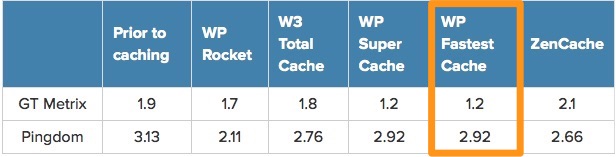
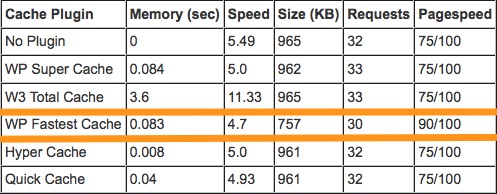
Is it really the “fastest” caching solution on the market?
According to the data provided on its WordPress.org page this seems very likely to be the case. Please look at the images below:
How does WP-Fastest Cache work?
Like any other caching plugin. WP-Fastest Cache generates static HTML files which are then served to the visitors. Therefore the server is not burdened with the need to search for the content in the MySQL database and then to use PHP in order to present it to the visitors. Thus your website achieves faster loading times for your posts and pages. Users are happy, your hosting provider is happy and your website has the possibility to rank higher (which means that you will be happy as well). A win-win situation!
What else can WP-Fastest Cache provide, besides the general caching functionality?
A very good question! WP-Fastest cache also provides the following features:
- Preloading – this feature allows you to create the cache of all the post, page, category, homepage periodically, which helps much in improving future page loads. What is best is that this happens automatically without additional settings or the need to monitor it constantly. All you have to do is to enable this functionality in the settings page of WP-Fastest Cache and then select the content type for which you want to generate cached files in advance;

- Disable the caching functionality for logged-in users;
- Disable the desktop cached version of the website for mobile devices;
- Automatic deletion of the cache when a new post is created – here you can choose to delete the home cache only or all cached pages;
- Automatic deletion of the cache when a post is updated – choose between the removal of all cached content or only the cache that is related to the updated post;
- HTML Minification – this feature can optimize the HTML code of your website and thus improve the loading times even more;
- CSS Minification – WP-Fastest Cache can optimize the CSS code of your WordPress website and therefore improve the loading times once again;
- CSS Combine Functionality – helps for reduction of HTTP requests;
- Javascript combination – by combining JS files in the header, WP-Fastest Cache is able to add additional HTTP requests reduction;
- Powerful GZIP compression;
- Browser caching that reduces page load times for repeat visitors;
- Support for different languages.

With WP-Fastest Cache you will be able to delete your cache when desired as well as the minified CSS/JS files that the plugin has generated. The latter is important when you have updated the content of the original ones.
For advanced users there is the option to add cache timeout rules.

Another powerful feature is the exclusion of elements that you do not want to cache. For example you may disable the caching for:
- Pages
- User-Agents
- Cookies
- CSS
- JS

With WP-Fastest Cache you can also add a CDN provider for even faster website!

With this I have covered the powerful features of the FREE version of WP-Fastest Cache.
If you are interested you can download it from WordPress.org and give it a try. Another option is to use the plugin installer system in your own WordPress website.
The Premium version however gives you even more power! Make sure that you check it out on the official website of the plugin (click here). If you consider purchasing it then this can be done through a link in the free version.
So what do you think about WP-Fastest Cache, friends? Share any questions or other feedback in the comment section below.
See you soon!
SendPulse – the ultimate digital marketing solution
Hello friends,
Today we are going to be discussing one solution that will help you achieve optimal results for your digital marketing campaigns. We will be focusing on its core functionalities and of course its WordPress integration.
This solution is called SendPulse and it is every marketeer’s best friend!

What does SendPulse do?
A lot! SendPulse is a full featured suite that offers you the possibility to create and optimize your newsletter campaigns with ease, then send them via SMTP which is again provided by the suite. Then you can target users with push notifications. But that’s not all! You can also send SMS messages so that your customers will always be notified about your discounts and offers. There is also an API that can be used by the engineers for full control and endless managing capabilities.
But what is most important about SendPulse is that this solution relies on artificial intelligence, hyper personalization and predictive analysis. By using it you can be one step ahead of your competition!
I want to know more about SendPulse.
I am sure that you do! If you visit the official website of SendPulse you will find out everything that you need to know. However let’s focus on the key features of this solution, shall we?
SendPulse is the choice of over 320,000 users for a reason! It simply works as intended. With this solution your digital marketing campaigns will benefit from extremely high delivery rate worldwide. Also SendPulse provides you with speed service (again extremely high).
One of the most important parts of every digital marketing campaign are newsletters. If they are created properly and sent in an appropriate time, then they can result in great ROI. Many users will return to your website and a great amount of them will purchase your products or services. In order for this to happen you will need a solution that will allow you to focus on the most important part – the creation of the newsletter and its sending when intended. So here comes SendPulse with its ability to allow you to create different types of mailings and send them all from one single platform.
Remember that I mentioned that this solution allows you to focus on the important parts of your newsletter campaigns? Well after you create and send them it’s time to start communicating with your customers. And when using SendPulse you can also focus on this extremely important part and leave everything technical to the great team behind the solution.
Sending a newsletter campaign must be done from servers that are known to have good reputation. Period! Everything else can be compared to trying to shoot birds with flak guns. You might hit some but most will simply fly away! But you can relax! With SendPulse not only that no birds will receive any harm, but your emails will just arrive to every subscriber! Nothing is lost!
This solution also allows you to create split tests so that you can achieve higher number of website conversions. There is also support for mobile devices. This means that your newsletters will be responsive and will allow your subscribers to read them with ease on their mobile devices.
SendPulse provides automation features. Using this suite you will be able to create hybrid series of communications and target your users with SMS, newsletters, webpush notifications. There is also an integration with third party systems that will ease the process even more. There are additional features like resend to unopened which is known to increase the original open rate of your newsletters campaign by up-to 80% (industry dependent).
Last but not least – you get an analytics functionality that will allow you to receive detailed reports so that you will know what is the status of your campaigns and how to improve them.
How to integrate SendPulse with WordPress?
There is a plugin that will activate Web Push notifications on your WordPress website. You may get it from WordPress.org or by using the plugin installer in your dashboard. There is also an excellent guide created by the SendPulse team that will show you exactly how you can integrate your website with the suite. Make sure that you read it (click here).
There is also another plugin from SendPulse that allows you to generate subscribers from your own WordPress website. There is a vast amount of benefits of having this plugin installed and activated. For example you can make list segmentation. Make sure that you read more about this plugin from here. And you can also download it from WordPress.org as well.
So what do you think friends? If you are still uncertain about whether to use SendPulse or not, then you need to know that you are able to try it for free. 15,000 emails can be sent monthly when using this solution and without any costs!
If you want to find out more about SendPulse, you can have a look at the official YouTube channel of SendPulse. There you can find great videos that explain how to work with the solution.
Here is an example for one of them which shows how you can create newsletters using SendPulse:
https://www.youtube.com/watch?v=24YOlnB0fU8
See you soon, friends!
Manage multiple websites with InfiniteWP Client
Hello friends,
Today we are going to be talking about managing multiple WordPress websites with just a single, yet extremely powerful solution.
If you are following TheCMSPlace then you are already aware of a similar tool called ManageWP Worker. Make sure that you read our review for it if you haven’t done this already.
In this post I will present to you InfiniteWP Client which is considered to be the best free way to manage multiple WordPress websites.

What is InfiniteWP Client?
This is a WordPress plugin that you need to install on every WordPress website that you administer or you are yet to create. But before you do this you need to make sure that you have downloaded and installed the InfiniteWP Admin Panel. The latter is a self-hosted tool that you need to add to your own server. Thus everything is under your control and you will be able to manage your websites with just a couple of clicks.
The InfiniteWP Admin is also free in its basic form. You can use it on unlimited sites and pay 0$ per year! You will also get a great e-mail support but replies will come back to you after 1-4 days. This is a great package for a start and most websites will be happy with these basic features. However if you want more power with better support and additional features you may consider purchasing some of the other paid packages. You can see them on their pricing page.
When you have the Admin Panel installed you should activate the InfiniteWP Client WordPress plugin on all of your websites. Then add them in the Admin Panel and start managing them with just a couple of clicks. Even better – with just one click!
Where to get the InfiniteWP Client?
This plugin is available for free download on WordPress.org (click to visit the plugin page) and you can also get it by using the plugin installer system in your WordPress dashboard.
What are the main benefits after having installed InfiniteWP Client and InfiniteWP Admin Panel?
First of all you should really appreciate the fact that the admin panel is a self-hosted system. This means that you decide where to install it, how to manage it and how to use it. The data is under your control which is very important.
Next you have the possibility to focus on more important things than accessing and managing each of your WordPress websites individually. This is achieved by using the InfiniteWP’s functionality that allows you to update your themes, plugins, core and other features with just one click! This really saves time and effort!
Now let’s speak about backup and restoration. As you know this is very important as well. Having backups ensures that you will be able to fix any problems caused by bad configuration or incompatible plugins and themes. That is why backups are always accompanied with restoration when speaking of these functionalities. InfiniteWP allows you to make both for any of your websites that you have added in the admin panel. You will also be able to choose what to backup and restore – the whole website or just its database. And all of these is achieved instantly. Awesome, right?
Managing multiple websites by using InfiniteWP means that you should be able to access each admin panel with one click. And that is exactly what you’ll get when using the Admin Panel and the Client plugin.
Even when you are managing one WordPress website, you need to have bulk management functionalities for plugins, themes, etc. So you understand how important is to have them when speaking of managing multiple WordPress websites. InfiniteWP provides you with this. You will be able to activate and deactivate everything on all of the websites that you have added to the Admin Panel simultaneously.
And wouldn’t it be great if you had the possibility to bulk install plugins and themes on all of your projects at once? Why to imagine this when it is already a fact. Yes, InfiniteWP will allow you to achieve this effect as well.
These were just some of the plugin’s and the admin panel’s features. For more information you should visit the official website. Also you may want to see what additional plugins are available for the Admin Panel. Some of them might really give you the needed power that you desire.
Also you may want to check this video for more information about InfiniteWP Client:
https://www.youtube.com/watch?v=8wOMewY2EBY
That’s all folks! What do you think about this plugin and its Admin Panel. Would you use it? Share any thoughts and questions in the comment form below and don’t forget to spread the word about this post in social media as well.
See you soon, friends!
Code Embed – the proper way to add code to WordPress posts and pages
Hello friends,
Have you ever felt the need to embed some sort of HTML or JavaScript code in any WordPress page or post? If the answer is yes and you haven’t found a solution to this problem yet, then it will be a privilege for me to provide you with one.
It is called Code Embed and it is the proper way to add code to your WordPress website posts and pages.

Why would I need a stand-alone solution when I can just use the WordPress text editor?
In most cases you will be right. The out-of-the-box WordPress text editor is a powerful way to add code to your posts and pages. However sometimes it just cannot stand up to the task. Some codes cannot be accepted with simple copy/paste since they will cause problems with the HTML structure of the page and simply won’t work.
That is why you need a separate solution like Code Embed that will allow you to add any code without problems.
How does Code Embed work?
Begin by installing the plugin and then activating it. As usual you can grab it from WordPress.org or use the plugin installer in your own dashboard.
When you are done with these steps you should go to Settings -> Code Embed menu in the admin panel of your WordPress website. Click on it and you will see some settings.

The idea is to define the way that Code Embed functions. You can show or hide debug HTML comments in source and also allow or deny embedded code to be shown in excerpts.
The keyword that you see on the screenshot above is a random string that you can type. This keyword is needed for the embedding procedure on the WordPress posts and pages. The opening and closing identifiers are characters that tell WordPress that here a code should be embedded when they surround the keyword that you have provided.
So if the keyword is WEAT (as in the screenshot above) then you can embed the code by using %WEATx% in your content. The “x” stands for the desired suffix. For example, you may add a custom field named WEAT1, where the value is the code you wish to embed. You can then add %WEAT1% in the post or page you are editing/creating. You should place this keyword with its identifiers in the desired part of your content and the embedded code will appear there. More instructions are provided on the Settings page of Code Embed.
It may sound a little confusing right now, so let’s see how we can actually achieve this effect.
Open any post/page and start editing it. You can also start creating a new one. At the end of this screen you should be able to see the Custom Fields meta box. If you don’t see it you need to click on Screen Options at the beginning of the screen and check the Custom Fields checkbox. You need to repeat this step for pages (if you are creating a post) and vice versa.
Now you should click on the Enter new link under the dropdown menu in the Name section of the Custom Fields meta box. Type your keyword – in our case WEAT. Next to it is the field where the value (i.e. the code you wish to embed) should be placed. Do this now. For example you may add a sample H1 text (see the screenshot below).

Click on Add Custom field and you will see that your code has been created. You can update it or delete it – as you wish. Now head to the visual editor and type %WEAT%. Preview this page and you will see the H1 text that you have just embedded.
Simple, right?
What if Code Embed does not work?
Try checking the code that you have placed. If it contains the following characters ]]> then most likely WordPress has discarded them. Always verify the source of the page and if the embedded code matches 1:1 with what you intended to embed then your code is wrong and you need to modify it. If some characters (like the above ones) are missing then it is likely that WordPress doesn’t like them and you need to figure out different solutions.
What else I need to know about Code Embed?
You can also use it for widgets combined with the Widget Logic plugin.
That’s all friends! Share any questions and thoughts in the comment section below. See you soon!