Automate your WordPress editorial process with Oasis Workflow
Hello friends,
Do you run a big website that publishes hundreds (or more) articles each month? Or maybe you have a small team of editors that take care of the quality of your website’s content and you want to make sure that their work is done correctly? Then you need something that will make your WordPress editorial review experience better. Something that will allow you to automate this process.
The great news is that such a solution exists. It is called Oasis Workflow and in this post I will present to you its powerful options.
Why Oasis Workflow is the solution you need?
Some of the reasons have been mentioned at the beginning of this post. Oasis Workflow will allow you to automate the entire editorial process of your WordPress website.
Let’s review the following example: You own a WordPress blog. You and a couple of authors create the content on a daily basis. You also have several editors that take care for different things regarding the website’s content. Some of them are in charge of improving the posts in terms of better SEO. Others are responsible for the images and other multimedia that should appear in each article. You also have editors who are correcting grammar and punctuation.
What is to happen to each blog post without a correct editorial review process? Unless you are using an external task management system, then the answer is – chaos! Imagine creating the article and monitoring the status of the draft by contacting directly and manually each of the editors. Now imagine what will happen if some of them do not understand you correctly and the article is published with incorrect content?
And if you are using an external task management system, then you are taking the risk of distraction. Why? Because you need to use two solutions simultaneously: the WordPress website and its post drafts on one hand and the task management system on the other. This solution might work but it is not the optimal one, believe me.
That is why you need a plugin like Oasis Workflow. It will help you automate the process and what is more important – it will keep the focus on the website.
How does Oasis Workflow function?
When you install Oasis Workflow you can go to your WordPress admin panel and then click on the Workflows menu. Select “Add New Workflow” and specify a title and description. Click on the Save button and you will be presented with the canvas for creating the editorial review process.
There are three process options that you can choose from:
- Assignment – a step that requires another user to take control over the article before it is published;
- Review – in most cases you’d prefer this to be the first step of your editorial workflow. Here the article needs to be reviewed by the respective users (in most cases the Editors of your WordPress website);
- Publish – in most cases this will be your final step where a respective role (most likely the WordPress Admin) should publish the post or return it to either the authors or the editors.
Each of these processes can be placed on the WorkFlow canvas by using drag and drop. Then you need to edit them. By default a screen will appear when you place one of the processes on the canvas. There you need to specify the roles that are to be responsible for this step and some other options. Then you need to place a second step and make a relation with the first one.
This is done by clicking on the small square on one of the steps and then drag to the next step. Another screen will appear asking you to specify the Connection Settings by choosing the post status after the transition and whether the path is success or failure. Success paths will be colored in blue and will be pointing from the initial step to the sequel one. The failure path will transition the post to the prequel step thus returning it to the originator for correction.
Speaking of the post status, here are your possible options:
- Draft
- Pending
- Private
- Pitch
- Ready to Publish
- With Author
For any workflow you can add as many processes as you wish. Simply select one of the three options, drag it to the canvas and make the connections with the rest. Simple as that!
Before you are done with creating your first editorial workflow, Oasis Workflow will ask you to specify a couple of things:
- Start Date
- End Date
- To what content types and user roles will this workflow be applicable;
Next you need to save your workflow and when you start creating a new post or a page you will be able to submit it to the editorial process. Then all of your users will know what to do with this content and will pass it on until it is finally ready to be published. Thus Oasis Workflow will help you save time and effort and will improve your productivity and content quality.
You can learn more about creating editorial workflows from this video:
And this video will show you how to use your workflows:
What else can Oasis Workflow offer me and my team?
This plugin has a free version that will allow you to create basic workflows. However the pro version, which can be purchased from www.oasisworkflow.com offers vast amounts of additional options that you will find more suitable for your project. With the pro version you can achieve great flexibility especially with the add ons that are available for it.
I will present several of the pro version functionalities (core and add ons) so that you can learn how to create the optimal editorial workflow:
Support for Published articles
A post has been created, edited, approved and published. Great! But as we all know we have to check our content from time to time in order to be sure that it is up to date. When something needs to be updated we do this and thus an old post continues to provide value for our visitors. Let’s not forget that this is also very important in terms of SEO as well.
However if you send the update for this post to the standard workflow, the post will be transformed to a draft or to another status (depending on your workflow). This means that it will not be available online and it will not be accessible by users or search-engine bots. This is not OK, especially the latter as it may cause damage on the indexation and ranking of your website.
So unless you want to work as fast as possible (which by the way increases the risk of making mistakes) you need a solution that will allow you to focus on the update, pass it to the workflow and publish it when ready while keeping the original version online until the process is done.
Such a solution is provided by the pro version of Oasis Workflow. You are able to make a revision which will result in an offline copy of your post. You and your team will be able to work on this copy and when the final verdict is “ready to publish” the copy will disappear and the original post will be updated with the changes. Great, isn’t it?
This video presents this functionality in details:
Editorial Comments Add-on
Have you been using Google Docs or Microsoft Word? Then you know that there is a possibility to add comment to a specific part of the content. And do you want the same functionality in WordPress? Then you can get it by purchasing the Editorial Comments Add-on. With it you can mark a section of the text and click on the blurb icon that will be available in the visual editor (more specifically the TinyMCE toolbar). Then you can add your comment and it will be displayed in the Inbox section of Oasis Workflow, as well as in the Workflow History page. What is more important is that each comment will also be visible within the edit screen in a special widget.
Editorial Comments will allow your team to focus on the problematic parts of your article thus improving their productivity and work quality. In my opinion this add-on is a must-have!
Editorial Checklist Add-on
We have been discussing edits, assignment and so on. However one very important thing has been missing – strict rules! And the Editorial Checklist Add-on will allow you to create them. This will ensure that the post is in top quality before moving on to the next step of the workflow process. This add-on may be used as a blocker in case the specified rules are not completed. Of course you may also use it just as a reminder (i.e. the checklist options will not be mandatory before moving the post to the next step), but this is not the optimal solution.
In order to add this functionality you need to create Condition Groups (there will be a special menu for this purpose). You will be presented with several options:
- Checklist options that are applied on the attribute in context. For example the post title has to contain 10 words;
- Checklist options that are applied on the containing attribute. For example the post should contain 4 images and at least 3 links and one category;
- Checklist options that are applied on the content as a whole;
When created, these checklist options/conditions may be applied to your workflow by selecting them in the edit screen of each step. More information on how to use this wonderful add-on can be found here.
This concludes the review on Oasis Workflow. There are many other add-ons and options that you may consider useful (and they really are). In my opinion this plugin really takes WordPress to a whole new level. With Oasis Workflow you can have many editorial workflows and you can always manage the already created ones. Make sure that you read the official documentation as well.
So what do you think, friends? Is this the solution for your editorial team? Share your thoughts and questions in the comment section below and do not forget to share this post in social media as well.
See you soon, friends!
How to lower the bounce rate of your WordPress website
Hello friends,
Do you get high bounce rate reports in Google Analytics? And do you want to know how to lower it?
Then you are reading the right post at TheCMSPlace! Here I will present to you several steps that will allow you to lower the bounce rate of your WordPress website.
Before we begin, we must discuss what bounce rate is.
Let’s imagine the following situation – you visit a page on a website. Then you decide to leave the website immediately by either closing your browser window or moving to a new tab or website. In any of these cases you have made a bounce because you didn’t visited any other page on this specific website. Each bounce increases the percentage of the overall bounce rate and if it is too great then this might be a bad ranking signal for the search engine bots and your SEO strategy will suffer.
There is also a bounce rate metric for any of your website’s pages and its purpose is to define which of your pages are causing more bounces.
What is the difference between bounce rate and exit rate?
Bounce is a immediate leave without any interactions. Exit means that the visitor has made some interactions with your website’s pages and has left the website from one specific page.
Is the zero or extremely low bounce rate a good thing?
First of all you might never experience such a result or let’s just say that this happens very rarely. There is always a fair amount of bounces. But if you encounter such metrics then you should know that the extremely low (or zero) bounce rate is just as bad as the extremely high one. In this case there might be some problem with your analytics tracking code. For example you may have inserted it more than once in the code of your pages. This will send a negative ranking signal so make sure that you discover the problem and fix it as soon as possible.
Remember – a fair amount of bounces is always something normal.
Now to the main point – how to lower the bounce rate of your WordPress website?
If it is too high then you need to make sure that your visitors can interact with your pages. First of all you should consider improving your content. Write useful posts that your visitors will read. Use suitable images and language. Make sure that your text is in a suitable tone and that there are no punctuation and grammar mistakes. Insert videos that are related to your main topic. There needs to be something in your posts that the visitors will interact with!
Once you do this then its time to imrpove the internal link structure of your posts and pages. This is very important for various reasons. It is extremely useful to provide links to related or similar posts in any post/page of your website. Also your menu structure should allow your visitors to reach any page with a single click or two clicks at maximum.
You can find more information about this in point 5 of our post 7 ways to improve your WordPress On-Page SEO.
There you will also find suitable solutions in the form of plugins that will allow you to build better internal links in order to reduce your overall bounce rate.
Another useful technique is to show popups that will ask the visitor to interact with your content before leaving. You may ask them to subscribe for your newsletter or to check a special offer or something else.
A suitable plugin for this purpose is OptinMonster. It is a premium optin popup tool created for marketing purposes. In our specific case you will be able to ask your visitors to make some interactions before they leave your website. And who knows they might even like to stay a while longer and even return regularly.

Another suitable plugin is Icegram. It is free and you might just find it the best solution for your WordPress website.

Last but not least – make sure that you are using your widget areas wisely. Putting a useful content there will also help you reduce your bounce rate. This might be more internal links for related articles or a some social media plugin.
So there you have it friends. If you have any questions or other feedback, please share them in the comment section below. Thank you and see you soon!
How to add web push notifications to your WordPress website
Hello friends,
Do you want to increase your visitors engagement? More clicks and bigger open rate (especially on mobile devices)? You may be surprised to find out that popular websites such as Facebook, Pinterest, LinkedIn and others have discovered a way to achieve this by using one specific technology. It is proven to be extremely engaging. It even beats SMS notifications, all of the various email marketing strategies and even social media itself!
This technology is no longer a secret! It is called web push notifications and in this post I will reveal to you several ways of adding it to your WordPress website!
But first things first! You may be wondering what web push notifications are and how do they work. So let’s explain this, shall we?
Web push notifications are messages that may appear on your visitors’ desktop and mobile devices. In order this to happen your website should be configured to use this technology. The next step is to instruct the web push notification system of your choice to work with specific browsers. Finally your visitors should be convinced to accept web push notifications for your website. When this is done the real magic is going to happen! Each new post will result in a small message that notifies the users for it. These notifications will appear even if the browser is not running! The end result will be an extremely high chance of intriguing the users to click on the notification and visit your website.
In SEO’s point of view this means several achievements – more returning visitors, more page views, high chance of increasing the time spent on specific pages and overall visit time, more sessions, higher CTR and lower bounce rate. All of these factors are extremely important for better ranking and web push notifications can help you improve them.
Now to the main point of this post – how to add web push notifications to your WordPress website?
Option#1 One Signal – the free way of integrating web push notifications for any website

Free! Startups, smaller business, non-profits and even bloggers will love this. One Signal will work flawlessly with just a couple of clicks and configurations, delivering web push notifications for your visitors in a flash.
How to achieve this with your WordPress website? Begin by installing its WordPress plugin. Then activate it and start configuring it. What you will need to possess are several API keys and application ID’s – Google Keys, One Signal keys, Apple Safari Web ID. Of course you will need a free Open Signal account as well. You can find a detailed guide on configuring this WordPress plugin here.
What else you will get from One Signal, besides the fact that it is free?
Support for unlimited number of devices and notifications. Localization, unlimited list segmentation, real time analytics, A/B Split Tests and more. You are just going to love it! One Signal also offers premium support if needed.
When One Signal is configured for your WordPress website there will be a button displayed inviting users to subscribe for notifications.
Speaking of this – TheCMSPlace is using One Signal and you are more than welcome to subscribe for our web push notifications.
Option#2 – PushCrew

Here you also need to download and install the respective WordPress plugin. Then you have to also activate it. You will need a PushCrew Account ID for the plugin’s settings. This means that an account is needed as well. You can create one on the official website of PushCrew.
Bear in mind that here you are presented with several pricing plans:
- Startup – free for 500 subscribers
- Premium
- Business
- Enterprise/Agency
The free option is suitable for start. All of the other plans offer very useful features that might be suitable when your WordPress site grows bigger and popular. So you can consider upgrading when needed.
When your account ID is provided into PushCrew’s WordPress plugin then your website will invite visitors to subscribe for your web push notifications. Detailed explanation on this plugin can be found here.
Option#3 – PushEngage

Not quite popular as the two ones above (when speaking of WordPress installations) however its free plan might just surprise you! Up to 2500 active subsribers, unlimited notifications, various browser support, detailed analytics and more features. This is definitely a service that you need to bear in mind. Again you are presented with a WordPress plugin that you can download from here. And if needed a special PushEngage plan with more features then you can consider purchasing some of the paid pricing plans that are provided on the official website of PushEngage.
Option#4 – PushAssist

This may be the easiest to set-up web push notification service of all. Its free plan supports up-to 3000 subscribers and offer great features as well. There are two other pricing plans that might be suitable for bigger websites – Premium and Enterprise.
PushAssist also comes with a WordPress plugin. You can get it from here. More information about this service can be found on its website.
This concludes our list, friends. What do you think? Will you use any of these web push notification services? Share your thoughts and questions about them in the comment section below. Also don’t forget to spread the word about this post in social media as well.
See you soon, friends!
What is CDN and how to use it to increase your website speed
Hello friends,
In this post I will share with you some useful information regarding SEO and image optimization.
And more specifically – what is CDN and how to use it to increase your website speed.
So what exactly is CDN?
CDN stands for Content Delivery Network. This type of network can help your server run faster by removing its obligation to provide static content (like images, css and javascript) when a page is loaded. This type of content is provided from various alternative server nodes that are spread worldwide. This means that if a user is trying to access/download something from your website (let’s say images for example), then they will be delivered from the nearest nodes (in geographical terms). Therefore the specific content will load faster on the user’s device and in the meantime your own server won’t be under additional pressure. It’s a win-win situation for both sides!
In other words CDN provides faster responses and content download times thanks to the effect of reduced latency.
How does a typical CDN work?
The typical Content Delivery Network consists of many servers that are geographically dispersed. The Nodes of the CDN are called edge servers. Their job is to cache the static content that you want to provide. Then your content is distributed to each of these nodes and it is stored there. Once this is done it will be accessed from the nearest to each visitor nodes and more specifically – it may be accessed from more than one node. So when a visitor lands on a specific page of your website, its loading time will be drastically reduced due to the fact that most of the content comes from the shortest distance and from different servers. And this short distance that the data travels is called reduced latency.
How to increase my website’s speed by using CDN?
First of all you have to find a suitable CDN provider. Then if you are happy with its pricing plans and features you have to tell the CDN which content should be cached on its nodes. This is also known as mirroring your data on the CDN. The next step is some basic configuration on your website so that each of the requests for accessing the chosen content are directed to the CDN and not to your own server/hosting.
If you are using a CMS like WordPress then the CDN implementation might be even easier. Most of the great CDN providers have plugins that you simply need to install and configure. This is extremely easy and after a few settings you are set up for using CDN.
Here are some honorable mentions that either have their own official WordPress plugin or are available for instant integration via most popular caching plugins or other custom/third party solutions:
- MaxCDN
- KeyCDN
- Amazon CloudFront
- CloudFlare
- Microsoft Azure CDN
- CDN77
- Jetpack Photon
- CDNify
- Fastly
- CDN.net
What are the pros and cons of using CDN?
Pros:
- Faster content delivery and response times for all visitors worldwide;
- Reduced main server load;
- Low or moderate difficulty of configuration (depends on the type of website and chosen provider);
- Provides “next-level” optimization for your website;
- Improves the overall SEO;
- Helps for higher rankings;
- There are free or cost-effective solutions which are suitable for smaller businesses or start-ups;
Cons:
- You still need to optimize your website and content;
- Some providers have high prices which might not fit into your budget;
- Your data is provided to a third-party service which might result in a loss of control and even blocked access;
- In some situations a CDN implementation might not be needed – for example if all of your visits come from near locations and your website is already fully optimized so that the responses are quite fast;
- Possible complexity when configuring CDN for some websites;
- Lack of file optimization and security risks from some providers;
Final verdict – should you use CDN or not?
By now you are aware what CDN is and how it works. You also know its pros and cons. So the decision is entirely in your hands. I am sure that in most of the cases (especially when you have a website with thousands of visits daily) you would like to use CDN.
So my advice (before you decide) is to have the following things figured out:
- Detailed information about your target audience;
- Expected website visits;
- Level of optimization before implementing CDN (focus on the website speed metrics provided from tools like GTMetrix or Pingdom);
- Budget;
- Implementation strategy;
I hope that this post has provided some clarity on the topic what is CDN and how to use it to increase your website speed. Please share any feedback in the comment section below and don’t forget to spread the word about this post in social media as well.
See you soon, friends!
7 ways to improve your WordPress On-Page SEO
Hello friends,
One very important aspect of SEO is the On-Page SEO. I even dare to say that it is the most important aspect. Some fellow digital marketeers would disagree by placing their faith on the Off-Page SEO which aims mainly on link-building. However as much as the latter is needed for better ranking, the lack of great and optimized content will reduce the value of your website in the visitors eyes. Let’s not forget that link-building is a double-edged sword. Why? Because in some cases it might ruin your SEO strategy due to a penalty by the search engines. And I believe that none of you wants this, right?
That is why in this post I will share with you 7 ways to improve your WordPress On-Page SEO. Let’s begin!
#1 – Choose a hosting provider that can guarantee you speed and high-quality backups
WordPress is great – we all know this. However some WordPress websites can grow into memory and CPU eating monsters. It happens quite a lot – especially if you are using low-quality plugins or plugins that are not working correctly with one-another (a.k.a. incompatible plugins). And while plugin management is your responsibility it is also important to rely on a high-quality hosting provider. This will ensure that your website will simply work. So the first thing to do is to check if your hosting provider gives you the quality you deserve and if not, it’s a good idea to migrate your website to another one. It’s also very important to have backups performed by your hosting provider. Additionally you might want to check some WordPress backup plugins like the ones that we have reviewed on TheCMSPlace. Check them out from here.
#2 – Create useful content with suitable selection of keywords and phrases
Without a proper keyword research your content will have little chance reaching a wider audience . This means that your SEO campaign is vital for your business. That is why you need to research all suitable keywords and phrases and use them wisely in your content. This will ensure that your target visitors will find your website in the search results. You should consider using tools like Open Site Explorer or Ahrefs for keyword research.
But having a bunch of suitable words and phrases is not the only thing that will make your content great. Let’s not forget that over-optimization with keywords is very bad for On-Page SEO. You have to use these words moderately in your content. In order to make it great, it has to be also useful and specific. This means that you have to write about topics that are strictly related to the main idea behind your website.
Great content can provide additional value to your visitors. For example a “how-to article” in which you describe the usage of a product will be extremely valuable. Also you have to make it user-friendly by writing in a style that is best accepted by your target group of visitors. Therefore it is imperative to know your audience and their needs and desires.
Last but not least – watch your grammar and punctuation and never forget that content is (and always will be) king!
#3 – Use SEO plugins
These WordPress plugins will make it extremely easy for you to manage your On-Page SEO. They will help you add all the important meta elements to your posts and pages and also to place suitable keywords and phrases in all applicable places so that your website will be crawled and indexed better. Also such plugins will allow you to optimize your content for social media as well. One of the best solutions that is suitable even for beginners is YoastSEO.
#4 – Optimize your images and multimedia
There is nothing worse than a bunch of large, unoptimized images and other multimedia content that make your website slow as a turtle. And this is something that you simply don’t want! Lucky for you we have an awesome collection of extremely easy-to-use tips for optimizing your images. Check it out from this link.
#5 – Improve your website internal and navigation links
WordPress is the king of creating internal links out-of-the-box! This is achieved with the awesome tag and category systems. By using them wisely you will get many internal links between related content. And having more of them is essential for On-Page SEO as it improves the crawling process of your website. Consider using plugins for related posts. They will automatically create even more internal links between posts with similar content.
Here are some great suggestions:
- How to display related posts in WordPress
- Methods for displaying inline related posts in WordPress
- Yet Another Related Posts Plugin (YARPP) – review
Now let’s focus on navigation. WordPress is equipped with a powerful menu system that allows you to create flawless navigation that will allow the visitors to reach the needed content quite easily. What you might want to do is to create a strategy for improving your WordPress navigation by:
- deciding which elements need to be placed in your main menu and all other menus (if needed);
- choosing suitable sub-elements;
- improving the tag and category structure of your website;
- choosing the menu(s) location(s)
To do this you have to make an audit of your pages and posts. You can use tools like SiteLiner or Screaming Frog. Choose posts and pages that contain great content and allow your visitors to reach them by using the navigation system of your website. Also consider using plugins like WP-PageNavi in order to achieve even better results.
Lastly – always check for broken links and if needed apply 301 redirects.
#6 Use the nofollow and noindex meta elements wisely
These two meta elements are very important for SEO. The first one is used when you want to tell the search engine bots not to follow a link that you have created. The second one tells them not to index the current post or page. In most cases you’d like to add a nofollow attribute to each external link (except the ones that you are sure that you want to share link juice with) while trying to keep the all internal ones “dofollow”. However there are cases in which you’d want to add nofollow attribute to some internal links as well. Based on the results from the content audit from the previous step, you should apply this to all links that point to pages/posts with little or low-quality content. Also you can set some pages to “noindex”. By doing this you can ensure that the PageRank flow will be distributed only between the most important parts of your WordPress website.
#7 Use caching plugins
W3 Total Cache, WP SuperCache or some other high-quality solution like ZenCache will boost the speed of your website. This means that the visitors will get to view your pages faster and also your hosting server won’t get overburdened. Also make sure that you have taken care of your .htaccess file by optimizing it additionally. This will ensure even better On-Page SEO results.
These are my 7 ways to improve your WordPress On-Page SEO. What do you think about them? Share any questions or feedback in the comment section below and share this post is social media as well.
See you soon, friends!
*Image source – Pixabay
How to optimize your images [Tips]
Hello friends,
In this post I will present to you several tips for image optimization. This is very important for better SEO and better ranking. That is why you should take into serious consideration how and when you will optimize the images on your website. The tips that I am going to share with you are both for WordPress websites and any other websites as well.
So, let’s not waste any more precious time and begin with the tips on how to optimize your images!
Tip #1 – Choose carefully your file format
As you know images come in the shape of files and each file has a unique format. The most commonly used formats that are also considered to be SEO friendly are:
- JPEG – suitable for pictures and other images that contain millions of colors. Provides you with high-quality compression which results in smaller file size. However the compression is “lossy” and this will result in information loss (the main reason for the smaller file size). JPEG file types are not suitable for images that contain mainly text, solid colors or graphics;
- PNG – suitable for almost any image types except pictures as some older devices might not display them correctly. This file format was created as a substitute for GIF and the quality of its compression is superior to the GIF itself. The PNG file also supports transparency which makes it ideal for background purposes as well;
- GIF – suitable for images with small, fixed number of colors. It is reduced to no more than 256 unique colors. The GIF file format provides great compression which is not that complex as the one that the JPEG file is equipped with. However this format is not suitable for pictures and other images with gradient colors due to the small number of supported colors. On the other hand the file size of a GIF file might be quite small and handy. Also the animated GIF types are gaining more and more popularity (especially for tutorial purposes) and you may consider using them in your posts;
Tip #2 – Choose a suitable resolution and DPI for your images
Now that you know which file formats you may use without any problems, you need to consider where the images will be placed and what will be their purpose. The different locations on your website might require an image with bigger or smaller resolution and DPI.
Most of you will be using either Photoshop or GIMP to create a suitable image. So here are some tips for these two softwares:
- In Photoshop you’d like to use a DPI with about 72 pixels. Always consider using the “Save for web” command (quite useful for PNG images) or as an alternative the regular “Save as” command with settings for medium quality (suitable for JPEG images);
- For GIMP – please read the official documentation on how to prepare your images for the Web;
In case you decide to use an online image editing solution or other offline software – you can take into consideration the tips for DPI that I have provided for Photoshop.
Tip #3 – Image file name
The file name should contain suitable keywords or phrases for your content. So you need to take into consideration using them as this may also improve your SEO.
Tip #4 – Image file size
By now you should have created an image with a suitable file format, resolution and DPI and file name. However this file might still be bigger than it is needed for SEO purposes. So let’s see how we can compress it a little more. You may be asking “Why is this needed?”. And the answer is – for optimal speed! The smaller the file size, the faster it will load on any device.
So here is how you can add additional compression for your images:
- You can use two command-line programs for Windows and Linux in order to compress JPEG and PNG files. These solutions are called Jpegtran (for JPEG’s) and Optipng (for PNG’s);
- You may also use various online solutions like Compressor.io or TinyPNG;
Tip #5 – If possible upload the images to another server or use a CDN provider
This will reduce the burden to your hosting even more and will result in a better speed and performance.
Tip #6 – Add alternate text, captions (if applicable) and image descriptions
So the time has finally come to use the image on your website. Before you insert it to your content, please consider using the above texts as they are extremely important for SEO purposes. You need to use unique variants for each of them and you should pay special attention to the alternate text. Use suitable keywords and phrases that may connect the image to the text content of the current page of your website. This will ensure that you get traffic from image searches as well and your content will also rank better.
Tip #7 – WordPress users might also want to use the following solutions for better image optimization:
- Jetpack – there is a free CDN service included in this suite;
- YoastSEO – this plugin will ease the creation and adding of the texts in Tip #6;
- WP Smush or ShortPixel – for additional compression when uploading image files to the WordPress media library;
- Simple Image Sizes – for in-WordPress resizing and custom WordPress image sizes;
- Regenerate Thumbnails – for regenerating your WordPress thumbnails;
This concludes the tips on how to optimize your images. I hope that you can find them useful for your websites. If you have any questions or suggestions, please use the comment form below. Don’t forget to share this post in social media in order to help users like you to find out how to optimize their website images for better SEO.
Thank you friends and see you soon!
*Image source – Pexels.com
Top 10 WordPress plugins for 2016
Hello friends,
WordPress is a CMS that can help many webmasters and admins to achieve their goals by creating the most suitable websites for their needs. This can be a regular blog (the reason why WordPress was created in the first place), a corporate website, presentation website, e-commerce project or something else. Yes, WordPress can be used for all you can think of and it works! That is why in December 2016 the percentage of all websites globally that are using WordPress is 27% with approximately 50.000 new ones added daily (according to expandedramblings.com).
The core of this CMS is quite powerful out-of-the-box, but the real power comes when you add high-quality plugins. This has been discussed many times here at TheCMSPlace and you can have a look at our various reviews so that you can discover suitable solutions with great quality for your websites.
In this post we will present to you our list of top 10 WordPress plugins for 2016 (starting from 10 to 1) so that you can have a head start when planning your next project.
So without further ado let’s begin with number 10:
#10 OptinMonster
This is the most popular software for WordPress in terms of conversion rate optimization. What OptinMonster does is simply to interact with all leaving visitors (the ones that are just about to close your website or move to another one) so that they can be transformed into email subscribers by filling out a unique form. This plugin relies on popups which are highly debated. Many users and webmasters consider them as “pure evil” while others simply adore them. The decision whether you are going to use such a plugin is up to you (and your audience, of course) but here are some things that might make you fall in love with OptinMonster:
- You can create astonishing forms that will attract any visitor’s attention by just using drag&drop;
- There are multiple form types to choose from;
- The Exit Intent® Technology will detect user behavior and will target them at the precise moment;
- You can do split tests so that you can choose from the best form for your audience;
- Page level targeting is included in OptinMonster;
- You can monitor statistics by the built-in analytics functionality;
These are some of the features that have turned OptinMonster into one of the top plugins for 2016 and if you really want to grow your email lists and bring back any leaving visitors so that they can become customers and brand followers, then this is definitely the plugin that you should consider using!
#9 UpdraftPlus

We are really proud to present to you one of the best backup plugins for WordPress. And in 2016 it has become even more popular. That is why it is included in this list. UpdraftPlus has already been reviewed here at TheCMSPlace so make sure that you read our review by clicking here. This is one really awesome plugin that will allow you to create regular backups of your website and also to restore any broken things with just a few clicks. Yes, it is that easy! You get to choose where to store your backups, run automated jobs, manage backups and more.
#8 Redirection

Another high-quality plugin that is still among the most popular ones in 2016. Our guess is that it will continue to be this popular in the following years as well. And this is not accidental! Redirection is the best plugin for managing all your redirects. Having a page moved to a new URL? No problem – just use Redirection to point to the crawler bots its new location. Want to know if there are some 404 errors on your website? Redirection is here for you as well! You will get a list of them so that you can decide what to do. This plugin relies on 301 redirects which are considered to be SEO friendly.
Make sure that you read our post on how to make redirections in WordPress so that you can find out more about this awesome plugin as well as some advanced information for the topic.
#7 WordFence Security

Who wants to have their website hacked? No one! That is why a great security solution like WordFence is needed. We have made a review on this plugin – it is available from this link. Read it to find out more about its powerful features and we are certain that you might want to try it out for your next WordPress project. What you get out-of-the-box is a free (yes, free) enterprise-class protection from various hacking attempts and malware infections. Great, isn’t it?
#6 MailChimp for WordPress

One of the best solutions for email marketing is MailChimp for WordPress. It will allow you to gain more email subscribers and grow your email lists. Then you need to login into your MailChimp account and start creating your stylish newsletters with ease. This extremely popular plugin is also reviewed here at TheCMSPlace. Click here to find out more about MailChimp for WordPress.
#5 SiteOrigin Page Builder

Want a free solution that will allow you to create any page just like you have imagined it? Then you need a high-quality Page Bulider like SiteOrigin’s one. This is one awesome solution that comes with various widgets and functionalities and all you need to do is just use drag&drop in order to create the structure of your page or post. Yes, it is that easy! SiteOrigin Page Builder has been reviewed in details in this post. But it is important to stress out that there are some other high-quality and also extremely popular page building solutions for 2016 as well. You may find a detailed list here.
#4 WooCommerce

The solution that transforms WordPress into a powerful e-commerce platform! There are tons of additional plugins for WooCommerce as well as themes that are intentionally created to improve its functionality. WooCommerce is definitely one of the top plugins for 2016 as it powers a vast amount of e-commerce websites. And believe me these numbers will continue to grow together with this plugin’s popularity.
When you get WooCommerce you receive a solution that allows you to present your products on your WordPress website with extreme ease. This is by far the most robust e-commerce solution that you may find for our favorite CMS and it provides great power right out-of-the-box. Start selling now!
#3 Advanced Custom Fields

The best plugin for creating custom fields cannot be left out from this list. It is definitely a solution that you may find useful. With it you can take full control on your editor screen when creating posts or pages. Add the fields that you need and that will enhance your creativity. There is a review for this plugin available for you on this post as well. You can read it from this link.
#2 Google Analytics by MonsterInsights

This is the formerly known plugin Google Analytics by Yoast. The team behind the plugin is different but its main functionality is the same. There is a review which you can read in order to find out more about this solution. What makes it extremely popular and needed is that you can add with extreme ease the tracking code for your Google Analytics account and start receiving statistical data for your visits and so on. This is by far the best way of doing this.
#1 Yoast SEO

Every WordPress website needs a high-quality SEO solution. And Yoast SEO is probably the best solution you can find. When using it you will improve your content creation, add all of the needed meta-elements and manage the way your content should or should not be indexed. With this plugin you will rank higher and your traffic will increase. A definite must-have for every WordPress installation! That is why Yoast SEO is at the number one spot in our list for top 10 WordPress plugins for 2016! There is also a premium version with more powerful features for even better SEO results.
This concludes our list, friends. If you have any suggestions, please use the comment form below in order to share them with us. We are also open for any questions or other feedback from you as well. Share this post in social media so that other users may find out which plugins they should consider using in 2017.
See you soon, friends!
Top 6 Drag and Drop WordPress Page Builders
Hello friends,
Page Builders are one very important topic nowadays. These handy plugins bring additional power to WordPress and thus allow every user (from beginner to the ultimate professional) to craft their website with a unique design and content so that it will attract visitors constantly.
Using a page builder will not only save time and effort but it will also allow you to focus on UX, which is one very important factor for more traffic as well.
In most of the cases what you will get is a full suite with sub-plugins and widgets that will allow you to create pages and posts by just using drag and drop. It is that easy! However the competition is growing constantly on the page builder market and users are not quite sure what to choose.
That is why this post will help you decide which will be your page building solution. We have done some digging and here is what we consider to be the top 6 Drag and Drop WordPress Page Builders:
Page Builder by SiteOrigin
This plugin hits the first spot because it is not only extremely powerful, but also 100% free. When you use Page Builder by SiteOrigin you will be able to create stylish content with just a couple of clicks. There is an additional widget bundle plugin (again free to use) which will add additional power in the means of more widgets with more functionalities and so on.
Page Builder by SiteOrigin is not only easy to use but it also does not burden your website when loading. This means that the focus is placed on speed when using this lightweight plugin.
There is a detailed review on Page Builder by SiteOrigin here at TheCMSPlace. You can read it by clicking on this link.
Elementor Page Builder

Our second spot is reserved for this awesome plugin. We really had a difficult choice to make when deciding which should be on the first place – the previous plugin or Elementor as they are both great, lightweight and extremely easy to use. They are also free which grants them advantage as well. The reason for the second spot is that we had less time spent with Elementor than Page Builder by SiteOrigin but this should not confuse you. Personally your top choice could easily be Elementor and here are a couple of reasons why:
- live drag and drop page building;
- no shortcodes at all;
- open source solution;
- ultra speed;
- a great amount of widgets and many other functionalities;
We know that making the choice is not going to be easy for you as well but for starters you can become more familiar with Elementor by reading our review here at TheCMSPlace about it. It is available from this link. Enjoy it!
PS: There is a PRO version of Elementor as well.
Visual Composer

If there weren’t free page builders in our list we would have placed Visual Composer on the first spot. Mostly because it provides you with all the needed power to make a professional website with little effort. This plugin however is suitable for professionals as well as it comes with different tools that will allow you to take full control over the look&feel of your website. But if you are a complete beginner you will need no more than a couple of minutes to figure out how Visual Composer functions and to start creating with it. There is also a great front-end editing functionality which is very important as well.
You can purchase Visual Composer from CodeCanyon or you can get it with some of the premium themes on Themeforest.
The only negative feature of Visual Composer is that it relies on shortcodes which may be a problem in case you want to switch to a new page builder in the future.
You can find more about Visual Composer from this video as well:
https://www.youtube.com/watch?v=mMBaQiG9Er4
Beaver Builder

The next spot is reserved for Beaver Builder. This premium drag and drop WordPress page builder can be quite useful. It is also super fast and there is an on-boarding tour that aims to make users familiar with its usage as fast as possible. There is also a live drag&drop interface that allow the super fast creation of any page or post on your WordPress website.
Again you will find basic and advanced modules which automatically makes this drag&drop page builder suitable for all types of users as well.
If you want to find out more about Beaver Builder, make sure to visit its official website.
Divi Page Builder

Another great solution is Divi. It is not only a premium page builder but a premium theme as well. Everything can be created using drag and drop which makes Divi a superb solution for many users. There are more than 20 layouts/templates that you can use and thus Divi is suitable for all sorts of websites.
The only thing that you have to bear in mind when using Divi is that it relies on shortcodes (like Visual Composer) but also it may be theme specific as well (if you use it as a theme). This doesn’t mean that it cannot be used with other WordPress themes, but users (especially beginners) may find it difficult to switch to another solution if needed.
If you want to find out more about it, visit its official website by clicking here.
VelocityPage

VelocityPage is a unique solution that many of you will fall in love almost instantly. It allows the creation of great landing pages with just one click. What you will also get is a real-time drag&drop page/post editing for your WordPress. VelocityPage is great for beginners as no coding or other technical-related skills are needed. All you need to do is to focus on creativity. And with this awesome page builder this is 100% possible.
In order to find out more about this premium page builder, please visit its website.
This concludes our selection for the top 6 drag and drop WordPress page builders. You can share your thoughts and questions in the comment section below and if you know other great solutions, please share them as well. Don’t forget to spread the word about these wonderful solutions in social media as well.
See you soon, friends!
Disclosure: This article contains affiliate links. This means that we are going to receive a commission if you click on one of them and buy something. This won’t cost you anything extra. By using our links you help us to maintain this website.
Loco Translate – translation power for WordPress [Review]
Hello friends,
I have already created a review for one great (and free to use) plugin that will allow you to translate your website and also to make it bilingual or multilingual. This can be achieved by using QtranslateX. Make sure to read this post by clicking here.
But in this post I will make you familiar with a similar plugin that is focused on helping you translate your WordPress website with extreme ease. This plugin is called Loco Translate.
What does Loco Translate do?
Translation! This is its main purpose. As you know some plugins and themes are created in one language only and this may not be suitable for you, your clients (if you are creating a website for them) and especially for the target visitors and future customers. Another very common situation is that there may be some translations provided but your target language is not yet supported.
In both situations you need to figure it out how to translate the specific plugin or theme. There are different ways to achieve this, however you may discover that Loco Translate is one of the best ways to do it. Mainly because it is super easy to use and also because it is already part of your website (since it is a WordPress plugin). This means that you will not be needing any additional software and/or tools to transform each non-translated section of your website to the correct language.
How to use Loco Translate?
Begin by downloading it from WordPress.org or by using the plugin installer system in the admin panel of your own website. Then activate Loco Translate and click on the newly created menu that has the same name. There you will see several sub-menus:
- Home – here you will see all of your installed themes and plugins that have provided translation files. This means that you will be able to start translating them by clicking on the link with the name of the plugin/theme;
- Themes – a list only with the themes that may be translated;
- Plugins – the same but this time focused on plugins only;
- WordPress – the ability to translate WordPress itself. If you are not aiming at using some extremely rare language then you should see 100% translation or similar number for your chosen one;
- Settings – here you may change the way Loco Translate functions;
This plugin also creates an additional user role, called Translator which means that you may provide access to specific people in order to translate your website if needed.
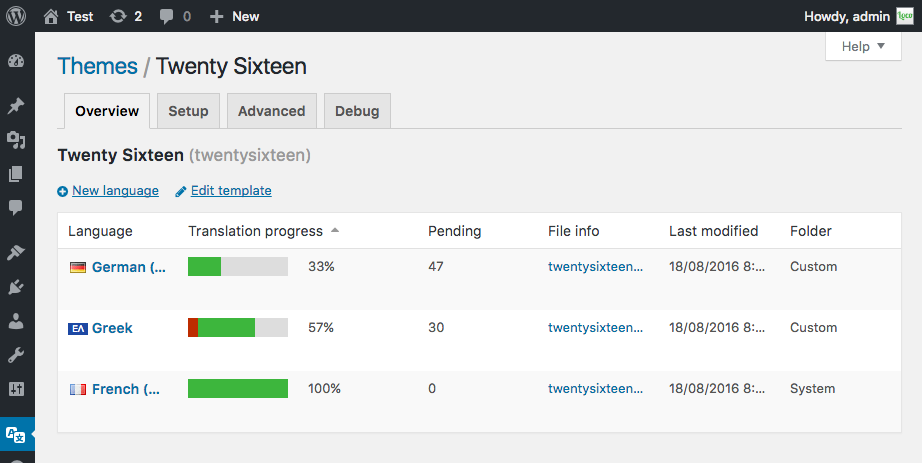
Now let’s click on one plugin or theme in order to start translating it. You can do this from the Home sub-menu or one of the two other options regarding your choice. You should see three tabs:
- Overview – providing the current translation files so that you may choose from them for edit or create a new one;
- Setup – here you can see the status of the bundle auto-configuration. This tab also provides you with the possibility to make advanced configuration, import config from XML, check config repository and get help if needed. The Author details are specified here as well;
- Advanced – some advanced settings for the current object that you will be translating. From this tab you will be able to download XML config if needed;
So click on the language that needs translation in the Overview tab or create a new language. Bear in mind that you can also get info on each available translation as well as its percentage of completion. You will also be able to delete translations.

When you do this you will see the Source text and each translatable string is on a different line. Click on one of the strings. In the field below this list you will see the current source text for the selected string and further below is the field with the translation for the selected language. It may be empty or translated incorrectly. In both ways you will be able to add the correct translation and then save your work by clicking on the blue “Save” button at the beginning of the screen. From here you will also be able to download the *PO and *MO files which may be useful for using them on different websites with the same plugin/theme as the one you are translating currently.
For each language you will also see several tabs:
- Editor – the tab that I have just described;
- Source – the source of the translation;
- File Info – some information about the percentage of translation, the name of the last translator, the last modified date and additional information;
- Delete – permanent deletion of the translation;
When you are done translating you may sync your work with the repository, download the translation files and most importantly – utilize the translation that you have created. Bear in mind that WordPress has to be set for the target language in order to see your translation text. This is done in the Settings menu in your admin panel.
What do you think about Loco Translate friends? Will you use it? Share your feedback in the comment section below and help us reach more users like you that are in need for a great plugin for WordPress translation. Do this by sharing this post in social media.
Thank you and see you soon!
*The images are embedded from the WordPress.org page of Loco Translate