How to disable WordPress comments
Hello friends,
In some of my previous posts, here at The CMS Place, I have written about various solutions for better user experience regarding the comments on WordPress. You might want to check how to integrate Google + Comments, Facebook Comments, Disqus or Jetpack.
Having a comment section with many abilities for the users is great. You will be encouraging them to ask questions, provide you with feedback and even take action in conversations between them. Let’s not forget that each comment might be considered as unique content as well and might aid your SEO strategy. Also comments might help building additional internal links for your website.
Having all this in mind we need to ask ourselves one simple question – are comments always necessary and should they be present on our websites?
If the answer to this question is “No” then something needs to be done in order to prevent the users from commenting and this needs to be done globally.
In this post I will share with you two ways for achieving this for WordPress – with or without additional plugins.
Most users might prefer the “non-plugin” solution. So let’s start with it first.
Every WordPress site has a special settings section for the default comments. So if you are not using any additional solutions you have to go to “Settings -> Discussion” and then you need to decide whether or not you want the users to add comments on your new articles. If you allow the checkbox your new posts will be available for comments. If you decide to remove it the comment section might be available for the old posts, but not to the new ones that you will publish after this moment.

Also each post might have an individual setting regarding the comments. Some posts might be available for comments while others will prohibit the users from doing this by removing the section. These settings are available under the “All Posts” section in your dashboard.
For the older posts you might want to check the checkbox “Automatically close comments on articles older than X days”, where X is the number of days.

And these settings are only posts-related. For pages you have to decide individually whether or not you want comments on your pages. This is done under the “All Pages” section in your dashboard.
If you have custom post types you might need to check them individually if you want to disable the comments or not.
All of the individual settings for posts, pages and custom post types can be done in a bulk way as well.
So if you invest a certain amount of time and energy into all of this you might be able to disable all comments for your WordPress site. But is it worth all of this effort just to evade the installation of an additional plugin? It’s up to you to decide but in case you want to achieve all of these actions instantly here is how:
You simply need to install and activate the plugin Disable Comments.

You can do this in the already known ways – either by using the WordPress plugin installer or by downloading and uploading the plugin manually. You might even extract and upload the folder on your server.
When you are done you need to verify that Disable Comments is activated and then you can head to the Settings section of your WordPress website and adjust the way that the plugin behaves.
This is a multi-site solution and it acts for any post type – posts, pages, attachments, etc. It acts globally and instantly and it also prevents the individual settings so that you can be 100% sure that not a single post type can have a comment section.
And that’s not all – Disable Comments can remove any comment-related items from your widgets, dashboards, admin menu and even your admin bar.
You have to remember one thing only – if you want to manually adjust the comment options for individual post types you must never install this plugin. Disable Comments will be useful only if you want to remove all comment sections sidewide.
So there you have it, friends. You now know how to administer the comments for your WordPress website so that you can enable or disable them. You should really consider which of the two options are most suitable for you and then use it.
What do you think about this post? You can share your thoughts in the comment section below (it is not disabled for this post, trust me). Also share this post in social media as well and help other users like you to learn how to manage these settings.
See you soon, friends!
Clef Two-Factor Authentication Review
Hello friends,
Do you want to improve the login security of your WordPress website? I suppose that you do. OK, how about achieving this without the usage of any usernames or passwords? Sounds great? Or maybe crazy?
The truth is that passwords and usernames used to be secure enough for many years. But nowadays each website requires us to have a unique password and/or username as using the same multiple times might be risky. Experts often suggest to use different emails as well.
But how to remember so many passwords and usernames? Just think how often you need to reset your password. Way too often? And now imagine that having all of these safety precautions is not enough as each password can sooner or later be hacked and used to violate your profile on almost every website.
So what could possibly be done about this? Well you might consider using a superb two-factor authentication solution like Clef. In this post I will make a review of its WordPress plugin – Clef Two-Factor Authentication.
What is Clef?
This is a two-factor authentication that does not rely on passwords or tokens. All you need is your mobile phone in order to scan the screen of your computer and you are already logged-in.
Clef offers custom pricing plans for different businesses and if you are interested about this service you may send an enquiry.
What are the benefits of using Clef Two-Factor Authentication on WordPress?
You will get a modern authentication system that will improve your WordPress security and will ease the login procedure for all your users. You will also be able to sign on or off with just a single click.
Basically you get:
- no need for passwords as users will be able to log in to your WordPress website by using the Clef Wave;
- two-factor authentication without the need of one-time codes like it is when using other similar services;
- fast and secure login by only using your phone and without the need to use any extra devices – some services may require you to use additional “third” device in order to improve your security. For example you may need to insert a USB flash drive or some security key. Clef Two-Factor Authentication does not require you to do this;
- one click sign ons and sign offs for all your websites – this adds additional strength to your security as you may log out instantaneously from all websites that use Clef. You may even add a timer so that the log outs can be automatic;
- extremely strong authentication by using RSA public-key cryptosystem;
- protection against popular password-based attacks for any WordPress website
I want to learn more about Clef Two-Factor Authentication.
And you really should, as the more you know – the better (when it comes to improving your website security). You can find additional resources on the Clef’s blog or Support websites.
You can also get to know how Clef works by watching this video:
How to use Clef on WordPress?
Install and activate the plugin Clef Two-Factor Authentication. You can get it from the official WordPress.org page of the plugin or from the WordPress plugin installer.
When you are done you need to complete the automatic setup wizard. There you will see a big blue button called “Get Started”. You need to click on it.

Now make sure that you have the Clef mobile app installed on your phone. Now you need to scan the wave on your screen in order to set up your website:

You will be presented with some more screens that will allow you to finish successfully the installation process. Don’t forget to make a configuration of the preferred passwords and security settings for the Clef users on your WordPress website. There is a great tutorial on this here: Recommended password settings for Clef’s WordPress plugin.
The highest security settings are to disable the passwords for all users and completely hide the password login form. However you may choose a different configuration. For example if you use the WordPress mobile app you may want the passwords to be enabled for API.
And that’s all now your login screens should look like this:

If you need to make additional settings you may go to your WordPress dashboard and click on the “Clef” menu.
And that’s all, friends! Don’t forget to check the reviews on this plugin on WordPress.org and feel free to share any thoughts, questions and feedback about Clef Two-Factor Authentication in the comment section below. Please share this post on social media as well and help us spread the word about this wonderful plugin.
See you soon, friends!
*The images are embedded from the WordPress.org page of the plugin and its support website.
Shortcodes Ultimate – review
Hello friends,
Do you want to insert the most needed shortcodes to your WordPress posts or pages at any time? If you do want this then you have already searched for various shortcode plugins and you most probably have installed (or at least considered installing) multiple ones in order to make a selection of all the shortcodes that you trully need.
But this is a mistake and there are two reasons why this is considered as such. First of all having more than one WordPress plugin that provide similar functionalities can slow down your website or even worse – this may cause additional conflicts. In both cases you don’t want to take this risk. Besides the different shortcode plugins may look different or act differently which is another inconvenience. You do want a superb looking website, right?
So the obvious solution here is to find a WordPress plugin that can provide as many shortcodes as possible in one place. The great news is that such solution exists and it is called Shortcodes Ultimate. In this post I am going to present it to you.
What is Shortcodes Ultimate?
The name says it all – this is an mega pack of shortcodes that can supercharge your WordPress website. The developers of the plugin consider it as a premium one that you get absolutely for free.
And if by some means you are not fully satisfied with the quantity (and the quality) of all shortcodes that are included in this collection then you may empower your website even further by adding some of the available premium add-ons which provide you with:
- 15+ additional shortcodes for your needs;
- more than 60 additional skins;
- a solution that will allow you to craft your own shortcodes;
And if you want all of these three then there is the Add-ons Bundle which combines them and you even get a 15$ discount. Isn’t this just awesome?
How will Shortcodes Ultimate supercharge my WordPress website?
You can use this plugin in order to modify any post or page by adding additional features to it. For example you may choose to create tabs or maybe you might want to add a slider here or there. And what about videos? With Shortcodes Ultimate you can add responsive ones to your WordPress website. Need buttons or different boxes? Say no more! Shortcodes Ultimate has these and many others as well.
This mega collection of shortcodes consist of more than 50 different solutions. The design of the plugin looks great and it should fit any website so that your most sophisticated tastes are fully fulfilled. Each of the shorcodes here is 100% responsive which is an absolute must-have for any website that wants to be considered as mobile-friendly. And this is very important for SEO, as you may know.
Speaking of design and great looks, this plugin can be altered by adding your very own custom CSS. There is even a special CSS-editor included. This is a CSS3 powered solution, bear in mind.
You also get a custom widget and multilingual support. Also there is a RTL Support included. You can use Shortcodes Ultimate with any theme and it should work out of the box flawlessly. This plugin is easily extendable as well.
How to use Shortcodes Ultimate?
First of all you need to download, install and activate the plugin. When you are done with these three steps you need to start creating a new page or a new post. As soon as the WordPress visual editor appears you will see that a new button is placed near “Add Media”. It is called “Insert Shortcode” and all you need to do in order to add any shortcode is to click it.
When you do this you will be presented with a menu window for the shortcodes generator. It contains all the shortcodes that you can add. There is even an option to search for the desired shortcode. At the top of this menu window you will see three links. One of them leads to the plugin settings page where you can modify the way Shortcodes Ultimate behaves. The second will transfer you to the homepage of the plugin and the third will lead you to the official support forums for Shortcodes Ultimate where you can find useful information and assistance.
In this menu window you will also be able to filter the various shortcodes by type as well.
For the different shortcodes you will get various options to choose from. For example buttons – they come in different sizes and styles. Need a specific colour? No problem, as Shortcodes Ultimate will present you with the possibility to select the most suitable one there is. You can also choose between unlimited border radius values and icons. There is also support for wide buttons. Great, isn’t it?
Now image all of the different types of shortcodes and the vast choices that you can make. This plugin alone can add such a powerful functionality to any WordPress website that you may never need another solution of the same type as well.
When you are satisfied with the selection you need to simply click on the shortcode and voilà – it is inserted and ready to be used when the page or the post is published. That’s it!
So, what do you think of this plugin, friends? Would you use it? Share any thoughts, questions or other feedback in the comment section below.
See you soon!
WP-PageNavi – WordPress paging navigation solution
Hello friends,
If you are hardcore WordPress fans you may have clicked very often on two famous links – “Older posts” and “Newer posts”. Yup, these two paging navigation links are needed especially when browsing a WordPress blog in order to see more of its posts.
The philosophy of WordPress is to use these links but what if you could be able to replace them with some other links? Wouldn’t that be just awesome?
The great news is that there is a solution that will allow you to achieve this. It is extremely easy to use and setup. The name of this WordPress plugin is WP-PageNavi.
Why should you use WP-PageNavi?
Most because you are a 100% fan of unique content. And while your posts and pages pass all SEO rules in that matter, why shouldn’t your paging navigation stand out from the crowd as well? Plus having a unique and catchy text for these two links might just cause the users to click on them. That is why you need to consider this plugin when building your next WordPress website or when you need to update the look&feel of your current one.
OK, but can’t I just rename the strings for these links when I translate my WordPress theme?
You may add different text when translating the PO and MO files for your theme, yes! And you will achieve a similar effect but that will last as long as you use the current theme. And only if you are using a different language than its default one. So, no – translating the strings in the theme files is not a suitable solution.
OK, so how to use WP-PageNavi?
First of all you need to pass through the usual procedure – download, install and activate the plugin. After you are done with this you need to head to your WordPress dashboard. Then click on Settings -> PageNavi. Now you need to adjust the WP-PageNavi’s options in order to start benefiting from its usage.
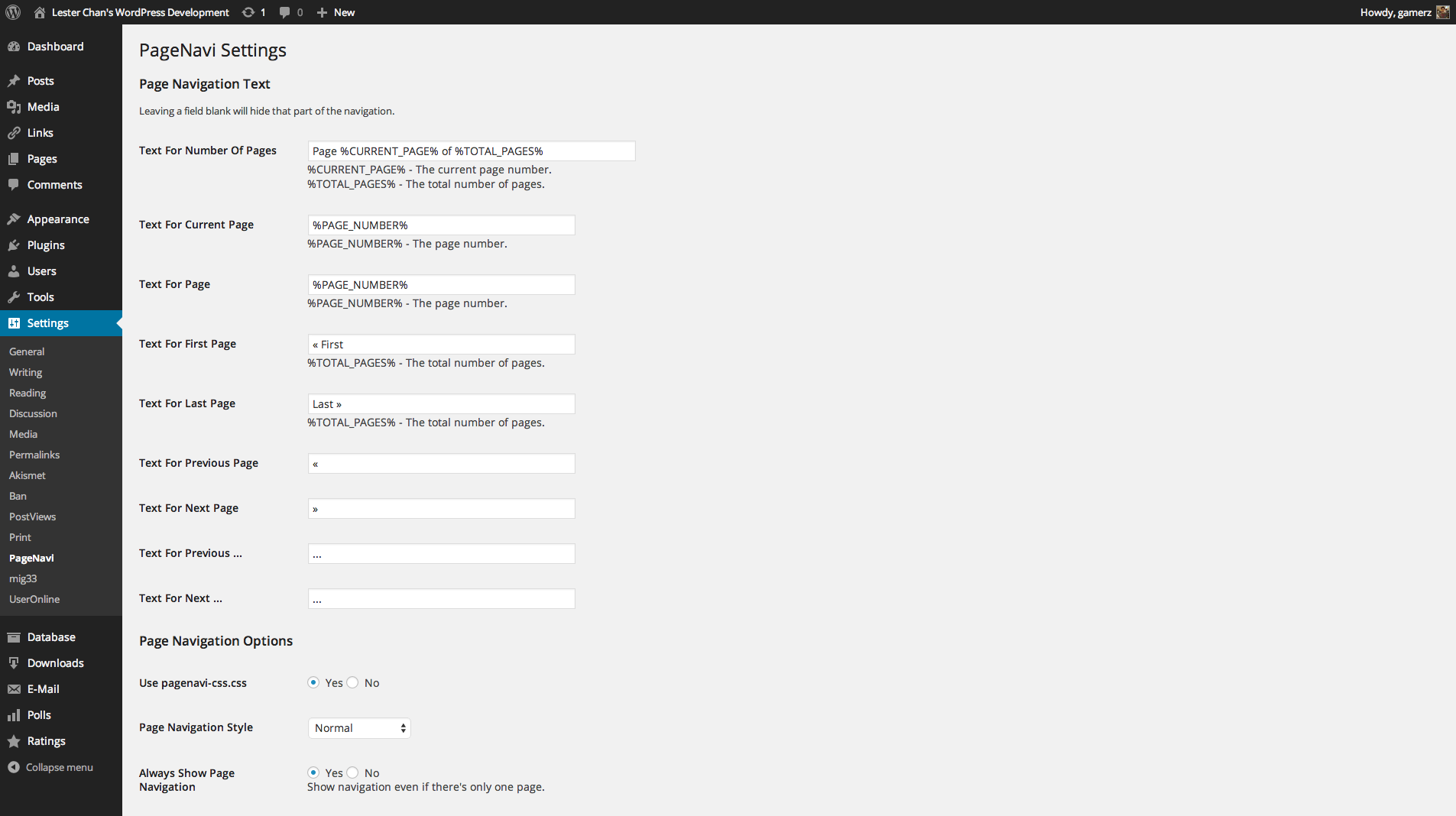
First of all you need to enter a text for the number of pages. Pay special attention the the attributes for each field. They are described below each field box and the main idea here is to write your custom text around them. For example if you want to change the default “Page X of Y” to “You are now reading page № X of our Y total pages” the right way to do it is to add the following strings:
You are now reading page № %CURRENT_PAGE% of our %TOTAL_PAGES% total pages
Simple, right? Now you can activate your creativity and think of the most suitable text for your website. The same applies for all the other field boxes and to be more specific you can adjust a custom text for:
- current page;
- page;
- first page;
- last page;
- previous page;
- next page;
- previous;
- next;
Bear in mind that you are free to use symbols as well. For example in the screenshot above you can see that the following symbols are used: “<<, >>, … “.
Don’t forget that you can also leave some of the fields empty. In this case they will be hidden from the navigation as they are blank.
In the WP-PageNavi settings you need to decide whether or not you want to use the pagenavi-css.css. You also need to choose the page navigation style and also to decide if you want the navigation to be always shown even if there is only one page on your WordPress website.
And that’s it! Now you can enjoy your new custom texts for your WordPress paging navigation.
What do you think, friends? Would you use WP-PageNavi? Share any thoughts, questions and suggestions in the comments below.
See you soon!
*The image is embedded from the WordPress.org page of WP-PageNavi
How to add a Visual Sitemap for WordPress
Hello friends,
Do you want to create more engagement with your posts and pages in WordPress? I suppose you do, as this is very important for SEO and for conversions.
In this post I will show you how to achieve this by adding a Visual HTML Sitemap for your website!
But before we begin, let me remind you the importance of having a standard HTML sitemap in the first place and how to add one to WordPress.
In the post “Add powerful XML and HTML sitemaps to WordPress” I have showed you one awesome way to generate a simple, yet powerful and great-looking HTML sitemap. You just had to use the plugin WP Sitemap Page. When done with the settings you had to select a specific shortcode and place it on one of your pages and voilà – the HTML sitemap was generated and made available for your visitors and the search bots.
In that post I have put the focus on the additional navigation that is provided by any HTML sitemap. Your visitors will always be able to see the detailed structure of your website and to visit any specific page or post that they might find interesting. In order this to happen you need to make the page with the HTML sitemap public and also to build as many internal links to it as possible. The smart way to achieve this is by adding this page to your WordPress menus. As you know many themes support different menu areas, so make sure that you are utilizing them correctly. Always create a menu with the thought of improving the user experience when browsing your website!
A standard HTML sitemap is also suitable for the crawling bots. Why? Because they will visit the page that contain its content and then they will visit all the links that are there. Well, at least if you haven’t decided to add a “nofollow” attribute to each link (this is supported by WP Sitemap Page). Or if you haven’t added a general nofollow instruction for the robots for this page (either by using a SEO plugin or by adding code to your Robots.txt file).
If you haven’t done any of these then the bots will crawl your HTML sitemap and therefore will visit all pages and posts that you have decided to include in it. The HTML sitemap will also ensure the creation of additional internal links which is also very important for SEO and will help you for the fight for higher positions in the search results.
OK, but what is the difference between the standard HTML Sitemap and the Visual one?
The standard HTML Sitemap, no matter how useful it is, is boring! Why? Because in most cases it provides only a pile of links.
The Visual HTML Sitemap on the other hand looks stunning. It gives a better view of the website structure. In the mean time this is still a HTML Sitemap, meaning that all of the benefits that the standard one provides will be included as well.
How to add a Visual HTML Sitemap for my WordPress webiste?
Install and activate the plugin Slick Sitemap. You can do this by using either the WordPress plugin installer or by manually upload the plugin. Then you need to head to Settings -> Slick Sitemap in your WordPress dashboard. Select the default sitemap menu that will tell the plugin what is the website structure and then set the default columns and the default utility menu.
You may have figured it out that if you want to include all of your posts, pages, custom post types, etc you need to add all of them to a new menu. So unless you are satisfied with the current menus that you have already created, you need to go to Appearance -> Menus and add a new one. Choose its contents, and hierarchy and provide it with a suitable name so that it will be easier to find it when adjusting the settings for Slick Sitemap.
Now that you are done with this you need to save these settings (Settings -> Slick Sitemap). Then create a new page and place the shortcode slick-sitemap (in []) and publish it. After this add this page to your default menus so that it will be easily accessed by both visitors and crawling bots and that’s it! Your Visual HTML Sitemap is created!
But what if I don’t want to have a publicly available Visual HTML Sitemap?
There are different reasons why you’d need only a standard HTML Sitemap that should be available to everyone and the Visual one (if you need it at all) to be visible for select audiences only.
The main reason for such decision is that the colour scheme of the Visual Sitemap does not fit on your WordPress theme. Also the client for whom you are creating a website might not like it. However I strongly advice you to have a Visual HTML Sitemap even if it’s meant to be shown to specific people.
One way to achieve this is by using the WordPress page settings for the page that holds the contents of the Visual Sitemap. You need to make it no-indexable and no-followable and also you need to choose between access with password or make the page private.
The next way is more suitable for showcasing the website structure to your clients. It is achieved by using the plugin Visual Sitemap.
Install and activate it in the already known ways and when you are done you can head to the newly created “Sitemap” menu in your WordPress dashboard. Your Visual Sitemap will await you there and anyone with access to the admin panel will be able to see it.
So these are the top solutions for creating a Visual HTML Sitemap for your WordPress website. What do you think of them, friends?
Want a great slider plugin? Try Meta Slider!
Hello friends,
Do you want to know what makes nowadays websites great? Content! Yes, once again you will encounter the famous phrase that “Content is King!”. And, yes – it is! Because without content each website will be just a pile of code. Content is everything on your website that might provide value for your target audience. It may be text, images, video files and other multimedia.
In this post I will present to you one solution that will help you create content in the form of interactive slideshows for your WordPress website. This plugin is extremely popular and has one of the highest ratings. Its name is Meta Slider!
Why do I need sliders on my website at all?
There are many discussions on the topic whether the sliders are necessary or not. There are many pros and cons for both sides, however one opinion summarizes the answer to this question. Sliders are necessary only if they are able to provide great value by solidifying the branding and trust for the website that they are used on.
So, before you attempt to insert one you need to sit down and do some thinking. You need to be creative in order to find the best purpose for every slider that you want to add. You may also need to do some split testing in order to determine if the sliders are great for your website or not (according to your target audience, of course).
But let’s assume that you already have this figured out and you just need the most suitable solution in order to create your sliders. So in this case the most logic questions should be:
How does Meta Slider allow me to create astonishing slideshows on my WordPress website?
First of all let’s start by saying that this popular plugin is extremely easy to use. With that being said you can now imagine the ease of adding various sliders to different parts of your website.
Next is the ability of Meta Slider to allow different slideshow solutions. You can choose from:
- Flex Slider 2 – this is a responsive slider that provides your website with two transition effects and also a carousel mode;
- Nivo Slider – another great slideshow solution that Meta Slider provides. It displays 16 different transition effects and comes with 4 themese. Again this is a responsive solution;
- Responsive Slides – if you just want something that will not slow down your website and in the mean time is responsive, then this is the most suitable option for you;
- Coin Slider – this will provide you with four transition effects for your slideshows;
In order to create any of these sliders you need to head to the Meta Slider menu in your WordPress dashboard and choose the type that you need (or add a new slider). Then you need to add images from the WordPress Library (either already uploaded ones or to upload new files) by using drag&drop. After you are done with the placement then you have to enter slide captions, links and other SEO meta data that is needed for the search engine bots and that’s it! When you are done you will get a shortcode that can be inserted on any page or post on your WordPress website.

As you can see the usage of Meta Slider is extremely easy indeed. Now let’s focus on the other functionalities of the plugin:
- Responsiveness – you may have noticed this already when I described the different slider types, but I will mention this functionality once again! Why? Because it is extremely important if you aim to create a mobile-friendly website. Now all of your slideshows will fit flawlessly on any screen;
- Optimized for SEO – all the necessary adjustments have been made in order to start using Meta Slider without worries;
- Vast support for image slides – you can add captions, links and the important for SEO elements – title text and alternative text;
- Full Width Slideshows;
- Preview for each slider in the admin panel;
- Ability to crop images;
- Widget support;
- Various options for each slider;
- Full localization and compatibility for multi-site;
- Compatible for multilingual websites – you can use it with WPML and other plugins like qTranslate;
- Extensive Developer API;
- Lightbox support for your slideshows and other functionalities;
What if this is not enough for me? I want more from Meta Slider!
Then you should consider the Pro version of the plugin. By purchasing it you will get the following functionalities in addition to everything else you have read so far:
- Ability to create stunning YouTube and/or Vimeo slides – this might just be the thing needed for delivering more value for your target audience;
- More themes – now you will be able to add custom themes for all your sliders;
- HTML support for sliders – create what you need in HTML and use it as a slider;
- Support for HTML5 video backgrounds and CSS3 animations;
- Navigation using thumbnails;
- Premium support that will help you with any problem regarding the usage of Meta Slider;
I want to see Meta Slider in action!
I am sure that you do! And you can do this from the video below. It shows the way you can use Meta Slider in order to create the most suitable slideshows on your WordPress website:
Where can I get Meta Slider?
You can always install it from the WordPress plugin installer. Additionally you can download it and install as upload from the official WordPress.org page of the plugin.
What are your thoughts, friends? Would you use Meta Slider for your WordPress website? If you have any questions, please use the comment form below. Don’t forget to spread the word about this post for the most popular slider solution for WordPress in social media.
See you soon, friends!
*The image and the video are embedded from the WordPress.org page of the plugin
UpdraftPlus – The supreme solution for WordPress backup
Hello friends,
We are back on the topic related to backup! As you know this is a very important thing related to each website or web project. And when it comes to a CMS system like WordPress where you are presented with regular updates then you should really take into consideration the best practices for creating and restoring backups.
In this post I will present another solution that can be easily marked as a supreme solution. This WordPress plugin is called UpdraftPlus.
What this plugin does?
UpdraftPlus is a solution for backup and restoration. Simple as that but in the mean time it offers a vast majority of important options that will ease your backups and increase your overall data protection in case of a failure related to your database or files.
So to summarize the main functions of UpdraftPlus – it is a supreme solution that will take care for the backups of your WordPress files and database and it will also aid you in their restoration in case of website failure and data loss.
Why I should choose UpdraftPlus instead of the many other plugins for WordPress?
This post is not a comparison between the different plugins. So in most cases you might be safe if you use any of the high-rated backup solutions that are available on WordPress.org.
However you will find that UpdraftPlus will be working extremely fast and well with your WordPress website. It is also extremely easy to use solution that will be suitable even for beginners which is another plus.
So let’s point out all of the features that you will get when you download, install and activate UpdraftPlus:
- Simple backup and restoration procedures – suitable for beginners;
- Various backup destinations – FTP, Amazon S3, Dropbox, Google Drive, Email and many others. This is probably the plugin that offers most options regarding the backup destination;
- Single click restoration of your backed-up files and database;
- Backup scheduler that you can set for specific times and for specific tasks – for example you can schedule only the backup of your files or only your database;
- By using this plugin you also get the UpdraftCentral which is a tool for remote control of your backups on every website that you administer with a single dashboard. UpdraftCentral serves for self-hosted projects and also for hosted for you websites;
- UpdraftPlus does not surrender easily in case of a failed upload. This plugin ensures the automatic resumption for them and continues to try once again in order to serve you at its best;
- UpdraftPlus also allows you to split the backups of large websites into multiple smaller archives;
- If you intend to backup only specific files then UpdraftPlus will allow you to select them. For example you may want to make a backup only for your plugins or content;
- The same applies when it comes to restoration of a backup. You are able to select only those components that you consider broken and they will be the only ones restored to your website. This saves time and reduces the server load;
- If you want to download your backups instantly then you can do this right from your WordPress dashboard;
- If you are a developer or you work with developers then you will be glad to find out that UpdraftPlus offers you a complete log for each backup process. This is available because of the Debug mode functionality of the plugin;
- UpdraftPlus is suitable for different languages and more translations can be added to the plugin. This makes it a perfect solution for multilingual websites as well;
This plugin is suitable for all current PHP versions. UpdraftPlus also offers a premium version that extends the backup and restoration power by adding more backup destinations and features. UpdraftPlus can also serve as a duplicating solution for whole websites. This means that if you intend to move your WordPress from one host and/or domain to another then you can rely on this plugin to aid you in this task.
The premium version of UpdraftPlus also offers great support and you can also contract professional support for any enterprise projects that are utilizing the power of WordPress. And if you are using another backup solution then you will be glad to find out that UpdraftPlus can aid you in restoration from a backup made by it. This is very useful if you want to restore your website to an earlier version before the first backup created using UpdraftPlus. Currently you can benefit from this feature if you are a premium user and if your old backups are created from BackWPUp, BackupWordPress, Simple Backup, WordPress Backup To Dropbox.
The premium version of UpdraftPlus also provides options for encryption of the database backups in order to improve their security.
This plugin is with the highest ranking on WordPress.org. So it is safe to say that your website should be in secure hands if you are using UpdraftPlus. We are speaking for more than 700,000 active installations. I am also using this solution for several websites and I am very satisfied with its performance.
UpdraftPlus will help you ensure your investment in your website by providing you with high-quality backups that you can instantly restore in case of a problem.
More on the UpdraftPlus usage can be seen on this video:
What do you think friends? Will you give UpdraftPlus a try? Or maybe you have questions? Feel free to write them in the comment section below. Don’t forget to share this post on social media.
See you soon friends!
Improve your sidebar widgets with Black Studio TinyMCE Widget
Hello friends,
In my last post I wrote about TinyMCE Advanced and the various benefits of using it as your main WordPress editor. This means that I have already shown you how to make the content for your posts and pages better and more attractive to the visitors.
But what about the widgets? They are also very important as you can see them (by default) on every possible URL in your WordPress website – posts, pages, custom post types, archives, etc. And while you can choose specific widgets for specific URL’s and even devices, you still have to decide whether you want them to be good-looking and providing valuable information or not.
I know that you’d choose the first option as you want your website to look as great as possible. So in this post I will present to you one WordPress plugin that will allow you to achieve this task. It is called Black Studio TinyMCE Widget.
What does this plugin do?
Black Studio TinyMCE Widget is a WordPress plugin that will allow you to create fascinating sidebar, footer and other widgets by adding rich text and various media objects into the content that they are meant to display for the visitors. In other words this plugin will allow you to edit your widgets as you would do with an ordinary post or page. All of this thanks to the powerful features of the TinyMCE editor.
How to use Black Studio TinyMCE Widget?
First of all you need to install the plugin. You can do this by using different techniques but the most popular option is to use the WordPress plugin installer section in your dashboard. Search for Black Studio TinyMCE Widget and install it. As an alternative you can download this plugin from its official WordPress.org page.
So now you have to activate Black Studio TinyMCE Widget and then you need to go to Appearance ->Widgets. This section in your WordPress dashboard/admin panel holds the different widget types that you can place in the widget areas of your theme. If you are using a pagebuilder plugin like Site Origin Page Builder then you will be able to insert additional widget areas directly into your content.
However this is a private case so let’s focus on the mainstream usage of the widgets. Each theme has at least one widget area and in most cases this is the sidebar. So let’s assume that you want to add a rich text widget with different media objects there. All you have to do is find the “Visual Editor” widget amongst your widgets and drag&drop it to the sidebar widget area (or any other area).
After this you have to click on the added widget and start editing in order to add your content to it. You will have the opportunity to add a title and then enter your main content for this widget. You will have two sub-options – to use the visual editor or the text editor. The latter is for advanced users who know how to write their own HTML code.
You will also be able to insert media objects. Here you can use the WordPress gallery in order to add pictures, video files, PDF files, etc. You can choose from the already uploaded files or upload a new one and insert it directly into your widget.
Who should use Black Studio TinyMCE Widget?
All users can benefit from this wonderful solution! Beginners may use it in order to ease the creation of awesome widgets. Advanced users and developers may find Black Studio TinyMCE Widget suitable for entering HTML code with further ease than by using the default WordPress text widget.
You can also combine Black Studio TinyMCE Widget with the WP Edit Plugin in order to gain even better ability to create unique content for your widgets.
What else is important for Black Studio TinyMCE Widget?
If you are yet not convinced that this plugin is a must-have for your WordPress website, then you should know that it is compatible with WPML which means that you can use it for any bilingual or multilingual website.
Black Studio TinyMCE Widget is also able to improve the time on page statistics in your Google Analytics. Why? Well, because you may provide your users with valuable additional information for a specific page and thus encourage them to stay a little longer on it.
This plugin is also valuable for the reduction of the bounce rate as you may add links to different parts of your website and thus not allow the visitors to bounce that easily. These two features are very important in terms of On-Page SEO.
And if you are a fan of full-screen editing in WordPress then you will be able to do this when creating your widgets by using Black Studio TinyMCE Widget.
This plugin also adds support for widgets accessibility mode and it is also suitable for usage in WordPress multi-sites. Let’s not forget the support for live preview in the theme customizer. This is an important feature having in mind the bigger role of the customizer in the current WordPress version and the future versions as well.
Last but not least – Black Studio TinyMCE Widget is already translated into more that twenty languages so that you can present it without any problems for the target audiences or if you prefer using a specific language for your WordPress admin section.
This is all that can be said about Black Studio TinyMCE Widget. It is a must-have as I already stated in the post. And what is your opinion friends? Share it in the comment section below.
See you soon and don’t forget the share this post in Social Media!
Want a better WordPress Editor? Try TinyMCE Advanced
Hello friends,
In this post I will present to you one tiny, but extremely powerful editor for WordPress. It is called TinyMCE Advanced.
Before I begin this review I’d like to explain why you might want to use TinyMCE Advanced instead of the default visual editor.
The answer is actually very simple – for more options when creating your unique WordPress content.
The default visual editor is powerful enough but if you intend to take your writing on a higher level you might want to consider something far more advanced. And such functionality is provided by the plugin that is presented in this review.
How to create better content with TinyMCE Advanced?
As usual you need to install and activate this plugin. You may do this from the wordpress.org page and then add it manually or you may choose to use WordPress’s installer system for plugins. In both ways you will end up with this editor and you can start using its full potential in order to improve your writing skills when creating your content.
When you are done with the installation and activation of the plugin you can create a new post or a page in order to see it in action. The default view of TinyMCE Advanced will look like the default WordPress visual editor (and that is actually its goal). However not everything is as it used to be. If you look again you will discover an additional toolbar with menus on it.
There you will see a File menu, an Edit menu, Insert menu, View menu, Format menu, Table menu and Tools menu. Each of them has its own sub-menu structure. And this actually makes you feel more comfortable as if you are using your favorite offline editor.
You can also drag & drop buttons and rearrange them as you wish in order to make the best tools available for you when creating your posts/pages. You will discover that you are now equipped with many more options than before.
But not only professional copywriters can benefit from the power of TinyMCE Advanced. Beginners can also take vast advantage from this wonderful plugin as its usage will limit (not to say remove) the need to use the text editor which might be harder for them. As you have noticed you will be able to insert even tables to your posts/pages. But not only you will be able to create them – you will also be able to edit them professionally. TinyMCE Advanced provides you with awesome options for lists. Now you will be able to insert them to your content professionally.
And how about that good old Search and Replace functionality that we miss from the popular programs MS Word, Libre Office, Open Office, etc? Well, now you can enjoy using it right in your WordPress website when you are creating your next post or page. Great, isn’t it?
But if you are serious about formatting your text then you should pay special attention to the fonts and their sizes. And that is the next reason why you are simply going to love using TinyMCE Advanced as your WordPress editor. Here you can select the font family and set an appropriate size.
The list of options continues, friends. And you should really give TinyMCE Advanced a try.
What do you think of this plugin? Have you used it? In this case your opinion is more than welcome. You can also share any other thoughts and questions (if any) about this plugin in the comment section below. Do not forget to share this post in social media as well.
Thank you friends and see you soon!