How to create a bilingual website with qTranslate X
Hello friends,
Do you intend to create a bilingual website using WordPress? Then you need to have an appropriate plugin that can manage the different languages and translations. I am sure that you are all familiar with the true power of WPML. And while it is the most proper way to create a bilingual (or even multilingual) website there are some solutions that are somehow left out in the dark. However they might surprise you in a very pleasant way.
In this post I am going to present one of these solutions. It is called qTranslate X.
What it does?
When you download, install and activate qTranslate X you will be able to configure a multilingual WordPress configuration with extreme ease and functionality. The final result will be a user-friendly website suitable for audiences from different countries who speak different languages.
How to use qTranslate X?
Like I already said you need to have the plugin activated. The next step is to configure it properly. But before you proceed with activation you need to be 100% sure that you don’t rely on any other multilingual plugins. This is extremely vital, friends! Otherwise you risk to have a conflict between these plugins that will result in a bad website functionality.
After these words of caution, you should continue with activation and initial settings. These are made on the Settings -> Languages menu in your WordPress dashboard. There you need to tell qTranslate X which languages are needed for your multilingual website.
Once you click on this menu you will be presented with the options for the “General Settings” tab:
You should add English as one of the languages that are to be enabled. Then proceed with adding more. My personal advice is to limit your website up to 3 different languages. However your target groups might be bigger and you may decide to add more.
One of these languages has to be set as default. In most cases that should be the English language. If a desired language is not listed you can always add it by choosing a two-letter “Language Code” – see the “Languages” tab.
After you are done with the language selection, you have to decide how your website will handle the different languages. Here you are presented with four different options:
- Query mode
- Pre-Path mode
- Pre-Domain mode
- Per-Domain mode
My personal advice matches the recommendation of the qTranslate X creators and it is to choose the Pre-Path mode that is the most SEO friendly solution of them all. When you select this then the URL address for each page will be: domain/language (en/de/fr, etc)/permalink structure for the post or the page.
The next step is to choose how qTranslate X will handle all untranslated content on your multilingual website. You can hide it. Or maybe you might want to show the displayed language prefix when the content is not available for the selected language. Another great option is to show the content in an alternative language when the translation is not available for the selected language.
The great thing here is that you may select multiple options in order to achieve the needed functionality for your multilingual WordPress website.
Two more steps await you on the General settings tab for qTranslate X:
- Whether or not to show language names in camel case;
- Whether or not to detect the language of the browser that the user has set up and thus redirect them to the respective language of your website;
The next tab is the “Advanced tab”.
Here you need to define:
- the post types that should be available for translation – post, page or attachments;
- the flag image path – this is the path that contain the flags for the different countries;
- which links are to be ignored;
- define the head inline CSS;
- adjust cookie settings;
- updated Gettext databases – this is very useful, because if you choose to activate this feature then qTranslate X will check the WordPress Localization Repository every week automatically and thus you will have the latest Gettext databases for your website;
- adjust date/time conversion;
- adjust the option translations;
- editor mode options – manage the ways of translating your content in WordPress;
- LSB style options;
- highlight style options;
The next tab is called “Integration” and it is intended to ensure the proper integration between your theme and your plugins.
There are detailed instructions available under the official integration guide (a link is provided in the tab).
The main configuration options here are:
- configuration files list;
- custom configuration;
- custom fields;
- custom filters;
- compatibility functions;
The next tab is dedicated to Import/Export.
Here you may choose from the following options:
- To convert the database in order to match your content to the requirements of qTranslate X or simply to leave the database as it is. Bear in mind that the conversion processes on this tab are irreversible. That is why you should make a full database backup before proceeding (in case you decide to);
- Migration options from different plugins: qTranslate, mqTranslate, qTranslate Plus. For WPML you will need to install additional plugin (a link is provided in the tab) in order to import the data successfully;
- Reset qTranslate – a set of different options is provided;
The final tab is called “Languages” and here you can see and manage all the needed languages for the proper usage of qTranslate X.
You may enable or disable languages as well as add new ones and assign a proper flag to them.
Now that you have done all configurations (and especially if you use the default options) you will get an improved text/visual editor for your WordPress posts/pages with the new language options so that you can easily create stunning unique multilingual content.
And that concludes this short review for qTranslate X. There is definitely a great potential in using this plugin and I would suggest to give it a try. It may surprise you! Please make sure that you read the detailed guides on using this wonderful plugin. They are provided on this URL: click here.
So now I turn to you, friends. Will you try qTranslate X? And if you have already done this, please share your experience with this plugin in the comments below.
See you soon, friends.
All-in-One Event Calendar – review
Hello friends,
Do you want to create a WordPress website which main goal is to promote events? In this case you need to find a suitable event solution that will help you achieve this.
In this post I will present to you All-in-One Event Calendar. This plugin will allow you to list your events and present them to your audience with a style.

Why would I need a website that promotes events?
This is a great way to display your own events and gain a bigger audience for them. They can be free or paid. Such website can also gain revenue by promoting external free or paid events.
How to turn my WordPress website into an event website?
By downloading, installing and activating All-in-One Event Calendar. When you do this a new section in your WordPress dashboard will appear. It is called Events and it should be located right after the “Posts” section. It even uses the same icon.

In the Events section there are different sub-sections. Let’s review them one-by-one:
1. All Events

By default this sub-section should be empty since you don’t have any events yet. But when you create even one it will be showed here and you will be able to manage it by editing it (standard or quick edit), deleting it (by sending it to the trash), view the event, clone the event or clone it as a draft.
It is safe to say that the default WordPress way of managing posts and pages is applicable for managing your events with some differences, of course. But we’ll get back on this in a moment.
2. Add New

Here you actually create your event. You can set different details:
- Event title – that is to be publicly displayed;
- Event duration – start and end date and the respective time. The event can be an “All day event” as well;
- Event time zone;
- Repeatable event or not;
- Event location details – venue name, address, coordinates and placement on Google Maps;
- Event cost and tickets – the event can be free or paid. You can display an external link to purchase tickets for this event if it is paid;
- Organizer contact information – name, phone, e-mail, website URL;
- Main content of the event – you can add text and multimedia using the standard WordPress visual and/or text editors;
- Featured image;
- Custom fields;
- Comment options;
- Category and tag management;
- Publishing details;
3. Organize
Here you can manage your events by assigning them to categories or tags. Each category can have its description, colour and image.
4. Import Feeds

Here you can configure which other calendars your own calendar subscribes to. You can add any calendar that provides an iCalendar (.ics) feed. You need to enter the feed URL(s) and the events from those feeds will be imported periodically.
5. Add-Ons

Here you can extend the power of All-in-One Event Calendar by adding different add-ons.
6. Calendar Themes

Make your All-in-One Event Calendar look awesome by adjusting its design. You can select one of the provided themes that will be most suitable for the overall design of your WordPress website.
7. Theme Options

In case you need to further change the design of the selected theme, then you can go to this sub-section for All-in-One Event Calendar. Here you can set:
- General options;
- Tables options;
- Buttons options;
- Forms options;
- Calender general;
- Month/weeek/day view;
- Agenda view
8. Settings

Maybe one of the most important sub-sections for All-in-One Event Calendar. Here you actually define how the plugin will behave on your WordPress website. You need to pay special attention and choose the most suitable options so that you can be satisfied from the final result.
9. Widget creator

In case you want to embed your events on external websites you can create an embeddable widget by using this sub-section for All-in-One Event Calendar. You are provided with some options and when you set them you will receive a code that needs to be embedded into the external website. Below you are also presented with a preview of the widget.
The creators of All-in-One Event Calendar suggest that you should not use this code on the website that is running the plugin as this might cause conflicts.
What else do I need to know about the usage of All-in-One Event Calendar?
You can use shortcodes. All of them are described in details on the FAQ section of the plugin on WordPress.org.
Each event is optimized for SEO which will serve for better website performance. The plugin is available for different languages which makes its usage international.
Can I see All-in-One Event Calendar in action?
Of course! There is a nice video that shows the functionality of the plugin. You can see it below:
https://player.vimeo.com/video/135004810
And that’s it, friends. What do you thing of All-in-One Event Calendar? Will you use it in order to create an event website on WordPress?
Please share your thoughts in the comments below. Feel free to ask questions as well and don’t forget to share this post in social media.
See you soon, friends!
WP-Pro-Quiz – solution for online quizzes and tests
Hello friends,
Have you ever wondered what are the benefits of having an online quiz or test on your own website? Well, to be honest they are plenty, but I will share the most important ones:
- You can build a community around your tests and quizzes that will increase traffic;
- You can provide useful information based on the provided answers – for example a personality description for a personality test;
- You can gain more email subscribers for future campaigns;
- The brand awareness of your website can increase, etc;
Having this in mind you might want to consider the integration of such quiz or test. Of course if your website’s goal is entirely test-orientated (i.e. its aim is to provide different tests) then you are obliged to find the most suitable and cost-effective solution.
In this post I will present such solution for WordPress. It is 100% free and twice as powerful. This plugin is called WP-Pro-Quiz.
What WP-Pro-Quiz does?
It allows you to create different quizzes with unlimited questions of different types. The solution can also provide users with grades based on their scores and even send them via email.
WP-Pro-Quiz offers you the following question types:
- Single Choice
- Multiple Choice
- “Sorting” Choice
- “Free” Choice
- “Matrix Sorting” Choice
- Cloze function
- Assessment
Each quiz can be set up for a specific time limit. You can also disable this functionality. WP-Pro-Quiz offers the ability for random answers or random questions.
Each quiz can have a category. The same applies for the questions as well. You can see results for specific categories of questions or to display them according to their categories when filling out the quiz.
The might of WP-Pro-Quiz is the ability to add HTML in both questions and their answers. This will allow you to create great-looking quizes with multimedia content in them.
When a user starts filling out the quiz they might want to go back to the previous question in doubt of an error. WP-Pro-Quiz provides such option which is turned off by default but can easily be turned back on. Besides this you can also have other forms of navigation:
- Normal – Displays all questions sequentially, “right” or “false” will be displayed at the end of the quiz. This is the default option;
- Normal + Back-Button – the same as the previous but with the “Back” button added to each question;
- Check -> continue – Shows “right or wrong” after each question;
- Questions below each other – If this option is activated, all answers are displayed below each other, i.e. all questions are on a single page. You need to specify the number of questions that are to be displayed on a page;
You have probably noticed that WP-Pro-Quiz works with “right” or “wrong” questions. This is the default state and in most cases you might want to keep it. You can provide optional HTML for both correct and incorrect answers as well as hints.
But what if you are preparing a personality profiling quiz that does not require right or wrong answers? Simply turn this functionality off and that’s it.
Now let’s talk about question points. WP-Pro-Quiz needs them in order to calculate percentage of successful answers. By default a correct answer will give 1 point. You can alter this and even set different points for the different answers (extremely useful when there is no right answer). The possible scenarios for points are: 0 and whole positive numbers (1, 2, 3, etc).
When WP-Pro-Quiz finishes its calculations based on the settings for all questions it can display graduation texts. In order this to happen you need to divide the different grades in percentages. For example one graduation may be shown when 1 or more than 1 % of the quiz is correct. The next may show when the result is >= 29% and so on. The possible scenarios for percentages are 0% and whole positive numbers (1%, 20%, 64%, etc).
The result text can contain HTML as well and therefore it is entirely under your control since you can insert text and multimedia.
WP-Pro-Quiz offers different valency for each question. This plugin also provides you with a nice preview-function and statistics for the right and wrong answers (if you activate them). You can also turn on leader boards and even add custom fields.
And now two EXTREMELY important and useful features – templates (for both quizzes and questions) and import/export functionality. The first one is needed when creating similar quizzes/questions and the second can allow you to clone questions between quizes and even export a quiz to another WordPress website with WP-Pro-Quiz.
This plugin also allows quiz summary and it can also notify the website admins when a quiz is completed via email. As for restriction – each quiz can be limited to registered users or set to public and also each user may be forced to take the quiz only once.
Finally let’s talk about the design. WP-Pro-Quiz is looking fascinating by default. The plugin is also compatible with many other important WordPress solutions such as the caching plugins WP Super Cache and W3 Total Cache.
OK – how to use WP-Pro-Quiz?
Install and activate the plugin. Then head to the new menu bearing its name in the WordPress dashboard and click on its first item (still having the same name). From there you can create your first quiz, set its options and create a template if needed.

Then save this quiz and return to the WP-Pro-Quiz menu once again. Hover your mouse on the created quiz and select “Questions”. From there you can add questions, set templates and set options for the different questions.

When you are done return once again to the main menu of the plugin in order to copy the shortcode for the quiz you want to display on your WordPress website and then paste it in a page or post.

And that’s it! You can also check the Global settings menu and the Support & More menus of WP-Pro-Quiz.

Now it’s your turn to try this plugin, friends. Please share your thoughts and questions in the comments below.
See you soon!
Google Accelerated Mobile Pages (AMP) for WordPress
Hello friends,
In my last post I presented to you one solution that might be useful for both Facebook’s instant articles and Google Accelerated Mobile Pages (AMP). In this post the focus will be on the latter and I will present to you the current plugins that will allow your website to provide such content.
But first things – first! Let’s see what AMP are and why we need to optimize our websites for them.
The Accelerated Mobile Pages is a project that will provide a faster and open mobile web. So if we are to compare them to the Facebook’s instant articles they are basically identical – both projects want to provide mobile users with extremely fast loading of web content on their devices and in the mean time to keep the focus on the multimedia in this content.
However the major difference is that Facebook’s instant articles are designed for the Facebook’s mobile application only while the Google Accelerated Mobile Pages is a project that aims to serve Google users while searching the web via their mobile devices as well as the integration of the AMP project to multiple platforms.
So the main points behind the AMP project are:
- Speed – web pages with rich content should load instantaneously when browsed from a mobile device;
- Smart Ads – the rich content should work alongside with them in order to provide a better mobile browsing experience;
- Multiple plaforms and devices – the AMP project should allow the content appear everywhere instantly without taking into consideration the type of the mobile devices you are using (phone, tablet, etc);
Why we need to optimize our content for AMP?
This is a project that Google stands behind. If you are trying to optimize your website for better position in the search results then you are obliged to take the AMP optimization into consideration when planning your SEO strategy. There is already a section in the Google Search Console regarding the state of AMP content on your website and if there is none you should be getting errors/warnings. Sooner or later the AMP will be mandatory and I will not be surprised if there will be an update that will penalize all pages that are not accelerated for mobile devices.
So now that you are familiar with the AMP project let’s see how we can integrate it on WordPress.
In my last post I described Page Frog as a solution for both Facebook’s instant articles and Accelerated Mobile Pages. So the first option for your WordPress website is installing and activating this plugin and then follow the instructions in order to get your content optimized for AMP. Again you will be presented with a preview of what your posts and pages will look like when they are prepared for accelerated loading on the mobile devices.
This plugin is quite handy and many users are happy with it. However providing AMP content does not mean to forget about the genuine On-page optimization and integration of specific meta data in order to get your website indexed and better positioned.
And here comes the first problem – Yoast SEO users might have problems while integrating Page Frog with the SEO plugin. According to Yoast you might experience browser crashes when using the two plugins together and this will prevent your from creating great content and staying focused. Not to mention the possible data loss which might occur on such crash. It is extremely rare to happen but why to risk it?
That is why Yoast recommends using a combination of two other plugins:
- AMP by Automattic (the company behind WordPress.com) and

- Glue for Yoast SEO and AMP


So the total number of SEO plugins will be 3 when you count the Yoast SEO plugin as well. This might seem uncomfortable at first sight since we all know that having too much plugins on one WordPress website might cause loading speed reduction and other potential problems.
Nevertheless everything should be OK and Yoast are making tests and keeping us informed on their website about the progress regarding AMP integration. And to calm you down – they will be providing an AMP feature in their main plugin Yoast SEO soon. In the mean time we all have to wait until this happens and to use the current 3-plugin solution.
Now let’s see how to use it – install the AMP plugin and when you activate it you will be provided with an AMP version of your content if you add /amp/ to the end of the post’s URL. And when you install and activate the Glue for Yoast SEO and AMP you will be provided with a proper connection to the Yoast SEO plugin and thus you can be sure that your accelerated mobile pages will be using the proper On-page metadata.
Simple as that.
What should we do now?
I will once again share my personal intentions regarding these new optimizations – I will wait a little longer before optimizing my content for AMP and Facebook’s instant articles. The reason is that I consider both projects to be young and they might need to be tested and developed further. So while waiting I will be keeping an eye on their development and I will be paying special attention to the connection to WordPress as well. Also I will be making local tests as well. And sooner or later I will optimize my content for AMP and Facebook’s instant articles.
However if you want to start doing this right now you already have two great solutions that will aid you. Don’t forget to keep an eye on the Yoast website for more information about AMP and to take into consideration the future guides and tips that they will be providing for all of us.
And also don’t forget to share your experience with the rest of TheCMSPlace’s community.
That’s all for now friends. I hope that you find the presented solutions for AMP suitable for your WordPress websites.
See you soon!
Facebook instant articles for WordPress
Hello friends,
Nowadays everything is about speed! Not only in terms of SEO but mainly in terms of usability. The search engines are strict about these requirements and monitor each website so that only the optimized ones will be on top.
But this is no longer a specific task reserved only for the crawling bots. The other major traffic source (social media) has joined the party with similar requirements. And in this post I will present to you some solutions for optimizing your WordPress website for the instant articles of the biggest player so far – Facebook.
What are instant articles?
This is a website content that is shared on Facebook as you would do normally. However when clicking on it the user will still remain in Facebook and load it instantly leveraging the same technology that is used to display photos and videos in the Facebook mobile app itself. According to Facebook the loading times are 10 times better compared to the standard mobile web.
So the instant articles can be considered an optimized website content that is instantly available for the Facebook mobile app users. They are interactive and immersive. With this technology each publisher can improve the user experience by bringing a new life to their content. In order to find out more about this program you should visit the official website instantarticles.fb.com
Also you can see how they work from this video:
https://youtu.be/HVEksGDABko
How is WordPress involved in all of this?
You need to optimize your content for the instant article program so that you can leverage its powerful features and provide your Facebook followers with great mobile content that is loading instantly on their mobile devices using the mobile app.
How to optimize WordPress for Facebook’s instant articles?
There is an official way to do it and some unofficial (yet effective) solutions all in the forms of plugins, of course.
The official plugin is created by Facebook and Automattic (the company that is behind WordPress.com). You can get it from GitHub by clicking here.
What it does? It interacts with your content so that you can get your text and multimedia loaded instantly and properly displayed in the Facebook mobile app. For example your images will be available for full screen viewing after a simple click on them. See the example below:


This plugin also adapts the video player so that they can fit beautifully and instantly in the instant articles.
And basically this is all regarding the official solution. You can read more about it here: Introducing a WordPress Plugin for Instant Articles. Bear in mind that this plugin is still in BETA phase.
What other options do I have?
Since the instant articles program is yet to fully arive on the scene you should be aware that all of the solutions are still having some potential problems. However some of them are quite fit for the task at hand and I will present them to you.
The first one is PageFrog. You can get it from WordPress.org and install it. It will optimize your website not only for Facebook’s instant articles but also for Google’s accelerated mobile pages (don’t miss to check the article on the topic for AMP).

After you activate the plugin you should go to “Mobile Formats -> Setup” and then follow the instructions on the screen in order to optimize your WordPress content for the specific mobile pages (instant articles in our current case).
After this you will receive a live preview while editing your content so that you can be fully aware how it will end up looking when loaded on the users’ mobile devices.

If you are happy with PageFrog’s presentantion and functionality (see the reviews for the plugin) then I suggest that you read this great guide on how to set it up correctly. It is created by socialmediaexaminer.com and it will also present to you what is needed to start on the instant articles program.
There are also other solutions but currently they are not rated quite high and this means that you might have some potential problems with them. Of course you should keep an eye on their development as they might turn to be the most suitable options for your WordPress website in the near future.
Here is a list of the WordPress plugins for Facebook Instant Articles that you might also consider:
- WP-InstantArticles
- allfacebook Instant Articles
- Simple Facebook Instant Articles
- Facebook Instant Articles for WP
What is next?
Patience and optimization! The instant article program is a great thing and each publisher should be utilizing its powerful features. This will improve traffic and conversions as well as overall user experience and brand awareness. This will also gain you more Facebook followers, comments and likes (and other emotions/reactions as well).
Currently my personal choice is to wait a little bit longer before I activate instant articles on my websites. However waiting does not mean doing nothing. I am preparing by selecting content that is to be provided initially to the program. But if you consider yourselves ready then you can go ahead and try some of the solutions mentioned above.
Please don’t forget to share your experience with them in the comments below. This will be extremely useful for our community here at TheCMSPlace.
See you soon friends!
Why you should use Jetpack for WordPress
Hello friends,
In this post I will present to you one extremely popular solution for WordPress. It is called Jetpack and here you will find out several reasons why you should give it a try for your website.
What is Jetpack?
The short answer is a WordPress plugin. However it is not just any regular plugin – it is a complete booster for any self-hosted website (downloaded from WordPress.org).
It provides you with many modules that are absolutely free for use. You can activate all of them or just choose the ones that you really need. And there are some of them that are absolutely necessary for any WordPress website.
Jetpack is 100% free and all you have to do is just download it, install it, activate it and login with your WordPress.com account. And if the modules and their functionalities are not enough for you, you can always consider a premium upgrade that will provide you with even more power.
That’s great, but what is this WordPress.com account for Jetpack? I thought that it was a solution for the WordPress.org websites?
And that is correct! It is a solution for the self-hosted variant of our beloved WordPress, however it provides it with all the great features from the WordPress.com solution for free. That’s why you need an account for it. You can create one for free. It is not needed to create a blog there – just an account. Then after you have installed Jetpack you will be able to connect your website with that account and start using the powerful features of the plugin.
OK – which Jetpack modules do I really need?
I will answer this question with a question – How much power do you want for your website? If the answer is “as more as possible” then you should activate as much modules as possible.
However having too much power isn’t always the optimal solution. So my advice is to check out all modules and then select the ones that will provide you with the features that your website is lacking.
While you are considering what to choose, I will help you with a hint – there are 7 modules that are very needed so you might want to start with them.
Module 1 – WordPress Stats
This an absolute must-have. This is an analytics solution that will provide you with information on the activity of all non-logged-in users. All you have to do is to be logged in your administrator account and then view your stats. This solution will provide additional information so it is absolutely OK to have it running alongside with your Google Analytics account. The more data you have – the better.
Module 2 – Publicize
This module will automatically ping your social services (Facebook, Twitter, etc) and will post the new content on your behalf.
Module 3 – Sharing
This is an absolute must-have for your WordPress website. I have already reviewed it in details in this post, so go ahead and find out why you need it.
Module 4 – Contact forms
Every modern website needs contact forms. And here you have a complete functionality absolutely for free. So why don’t you give it a try?
Module 5 – Jetpack comments
This is another must-have. It improves the default WordPress comment system and allows your visitors to either comment with their accounts on your website, or to log in using social media and then comment. Of course you can allow them to write their e-mail and name and comment without registration or a social media profile as well.
In my opinion this module also helps reduce spam comments. However if you want even better protection the premium upgrades of Jetpack are there for you.
Module 6 – The Jetpack mobile theme
I used to love one non-responsive theme. It looks great, however Google did not liked it while it was not mobile-friendly. So I had to change it. But while struggling to choose a new theme and decide on its design I had to stay with the old non-responsive one. And what saved my ranks and provided my visitors with mobile visits was the Jetpack’s mobile theme. It is absolutely simple to activate and use. And if you like keeping things simple you may find the combination of any non-responsive theme and Jetpack’s module to be absolutely great and efficient. It basically transfers any mobile-unfriendly website to a mobile-friendly one.
Module 7 – Photon
Speed is another very important SEO factor. And to improve it you have to start by optimizing your images. Now, you will find some articles here that I have written about image optimization. But no matter what you do, you will find out that having a CDN is probably the most favorable solution. And Jetpack provides you with such option in the form of its free Photon module. It will make your website faster, so you can consider giving it a try.
And these are the 7 modules that you should start with. You may also consider the following ones as well:
- Infinite Scroll
- Tiled Layouts
- Carousel
- Extra Sidebar Widgets
- Enhanced Distribution
- Shortcode Embeds
So, dear friends, that is why you should use Jetpack for WordPress. What do you think? Please share any questions or feedback in the comments below.
See you soon!
WP Maintenance Mode for WordPress
Hello friends,
Sooner or later we have to make important changes to our WordPress websites. This can happen in the very beginning when we are creating the website directly on the official production server or later on when we need to modify the theme or add new functionalities.
In these situations we are faced with a couple of choices. One of them is to make the changes offline on a local server or on a mirror production one and then upload them to the official production server. This is great but not all beginners can afford a second production server or can work correctly with a local server, despite the fact that there are lots of tutorials on the topic.
Another option is to apply the changes in real time when there are less visitors so that their experience won’t be affected by the changes. This is suitable for small changes only. Otherwise something could go wrong and you might send away some of your visitors or even worse – your site might get crawled during this failure and cause a bad situation for your SEO strategy and goals.
A third option is to manually enter in maintenance mode and notify all visitors that the website is coming soon and that they have to be patient about it.
This is actually the most common option and in this post I will present to you one of the various solutions for WordPress that might be extremely useful for your websites.
It is called WP Maintenance Mode

This plugin will enable maintenance mode but in a very beautiful way. Your visitors will know that the website is under construction and they will expect its return. This is also very useful for building new websites directly on the production server itself. In this case you will have to tell the users that the new website is coming soon and even if you specify exactly how soon this will be – the better.
And WP Maintenance Mode does exactly this! And even better – only the logged-in users with admin rights will see the original website content. If they are logged-out they can log-in and continue their work.
As for the coming soon part – you can place a countdown timer so that the visitors will be informed. This is also useful for the under construction part.
WP Maintenance works with WordPress Multisite installs. It is also fully customizable. You can practically change colors, texts and even the backgrounds so that you can provide the best experience. It is also with a responsive design – something extremely important nowadays. There are several templates for the landing page and this solution works flawlessly with every theme for WordPress. Great, right?
OK – now let’s discuss something extremely important – subscriptions and social media followers.
Your website might be coming soon or under construction and therefore it cannot be used by the visitors. But does this mean that they cannot start following you on social media or to subscribe to your newsletter? Of course not! So you need a couple of things in order to attract subscribers and followers:
- A clear message and call-to-action;
- A subscription form that will export all emails to a csv file;
- A contact form in case the visitors want to ask you questions about the website;
- Social media icons that lead to your social media profiles
When you have these you are set to go. All emails can be used later for another plugin or you can integrate them to a newsletter service like MailChimp. That’s why you need the csv file. You can import it anywhere and use it and this is extremely important and handy.
Another important functionality of WP Maintenance Mode is its ability to exclude specific URL’s from the maintenance mode. This is great if you want to allow access to some pages that you consider ready. You can also exclude your custom login URL if you have set up one.
Last but not least – the SEO options.
You can specify different meta data for the landing page. For example you can set title and heading and then set the robots meta tag (for example to index, follow). You can also allow the search bots to bypass the maintenance mode.
What else?
WP Maintenance Mode allows redirection to a specific URL after login. And as for the user roles – you can define which role can access the frontend and which one the backend.

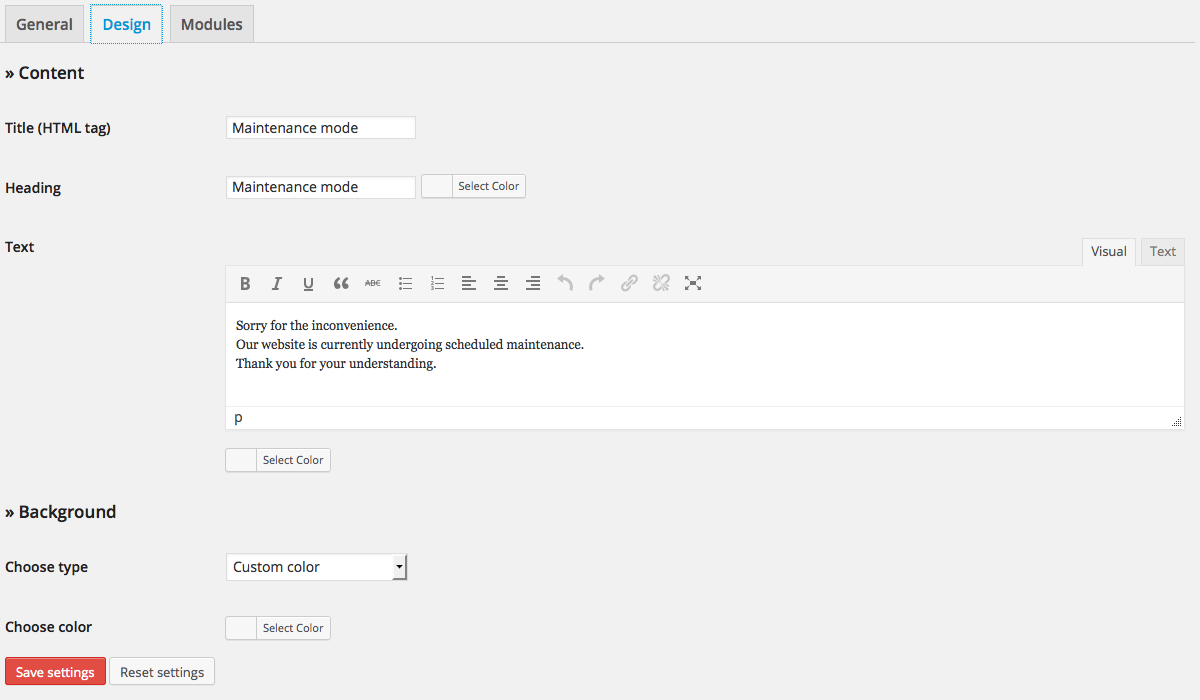

And this is it. Now enjoy one landing page example created using WP Maintenance Mode:

Do you like this plugin, friends? Will you use it? Please share your thoughts in the comments below.
Thank you very much and see you soon!
*The images are embedded from the WordPress.org page of the plugin
How to resize and add custom image sizes in WordPress
Hello friends,
In this post you’ll learn how to resize and add custom image sizes in WordPress.
In one of the previous posts we discussed the possibility to regenerate your thumbnails in case of emergency. Such emergency can be considered: a change in the theme, requirement by a plugin or page builder solution or something else.
So now you know how to regenerate these thumbnails (click here for a reminder) and the current task at hand is to find out how you can use this feature in order to add custom image sizes in WordPress.
So the first thing to do is to go to “Settings – Media” and change the default values for each thumbnail image size. From the previous post (the one about thumbnail regeneration) you know that each variant of an uploaded image is considered a thumbnail – not just the specific name given for the smallest variant in this section of your WordPress dashboard.
Before changing the values you have to be sure what you want to achieve. You may ask yourself “why should I need a bigger large size” (for example).
There are several possible reasons:
- your design will look better;
- you are sure that the speed of your website won’t get hurt;
- you need this option for a specific sidebar plugin or custom post, etc
So now you know why you need to do this. The next thing that you have to know is the exact image size that you need. Enter its values into the respective fields for the respective image size and then click on “Save Changes”.
Now you need to regenerate your thumbnails and you are good to go.
One quick tip for the “thumbnail size” – remove the checkbox that tells WordPress to crop the thumbnail to its exact dimensions. This will allow you to have equal in size images without information loss. After you enter the values for the “thumbnail size” you need to save the settings once again and regenerate the thumbnails.
That’s great but what if I need more image sizes? The default ones are just not enough! If this is the case you’ll need to learn how to add custom image sizes in WordPress.

You are right! The default ones are not enough in most cases so you need to add custom ones. And here is exactly how to do this:
- you can edit some WordPress files and add specific code to them in order to activate additional thumbnail sizes or
- you can use one extremely user-friendly plugin that does the very same thing
Since our goal is to help beginners, I am not going to review the first option and I will directly present to you the plugin.
It is called Simple Image Sizes and it does several things:
- adds custom image sizes that are available for your posts, pages, custom content, etc
- allows you to regenerate them instantly;
What? Regeneration? But I already have a plugin for this. Why would I need the Simple Image Sizes in this case?
Well, if you want to edit the WordPress files manually, you will need to keep Regenerate Thumbnails active on your website. However if you want to use the user-friendly solution you have to deactivate it. But don’t worry! Its functionality is still present in this plugin and you can still use it (or at least the functionality is very similar).
So how to use Simple Image Sizes?
First of all deactivate and uninstall Regenerate Thumbnails (if you have it installed). Then install and activate Simple image sizes and head to “Settings – Media”. You will notice a huge change to this section.

It still provides the default sizes but now you can add new ones. You will also have access to every custom size that was added by a plugin or a theme to your WordPress website but you were not able to tweak it before. Well, now you can!
You can also delete the custom ones as well and for each custom image size you can decide whether you want to apply cropping or not. My advice is NOT to use cropping (as discussed above).
If you add a new size you can regenerate all thumbnails from the specific button at the end this section. Please save the changes first and then select the thumbnails that you want to regenerate (this is different than the old solution and much more user friendly). Then you can apply the regeneration.

Simple Image Sizes has another fascinating functionality. After you have added a new size or tweked one of the old ones, you can get the PHP code with your changes and apply it manually to the WordPress files. This is extremely handy in case you’d want to remove the plugin in the future but keep its functionality (in terms of keeping the created image sizes).

Awesome, right?
And as for the WordPress Media library – you can still regenerate the thumbnails for each individual image.
This is all you have to know about Simple Image Sizes. Will you use this plugin? Please share your thoughts in the comments below.
See you soon, friends!
Regenerate thumbnails review
Hello friends,
Ever wondered if it is possible to change the different image sizes in WordPress without having problems with the generated thumbnails after that?
Then I have to calm you down as this is possible and it is also extremely easy to achieve.
All you have to do is install and activate the Regenerate thumbnails WordPress plugin and with just one click (yes, one) all your thumbnails will be fixed, according to the new sizes that you have set up for the different images.
Why is this plugin necessary?
Let’s assume that you have decided to add a new theme and it requires you to have different sizes for your image thumbnails. And before I continue with this post I have to clarify that a “thumbnail” for WordPress is the generated image with a specific size (set under Settings – Media). There you have (by default) a thumbnail size (for the smallest image), medium and large sizes.
Each of these three are considered thumbnails. Why? Because when you upload an image to the WordPress media library, the system creates different thumbnails based on these three default sizes so that you can insert them into your posts or pages or custom content types.
The original image size is not altered – only these new files (the thumbnails) are created and used.
So if you go to Settings – Media and change some of them and then click on the “Save changes” button then the next image that you upload to your WordPress media library will be accompanied by its respective thumbnails with their new image sizes.
However your already uploaded images will continue to use the old thumbnail sizes and that is not desired. You have to either re-upload them (something that is absolutely not acceptable unless we are speaking for a couple of images) or to use a high-quality solution that will regenerate these files once again and apply the new sizes correctly. Such solution is the Regenerate Thumbnails WordPress plugin.
How to use it?
As usual search for it in wordpress.org or add it via the “Add New” plugin section in your WordPress dashboard. Then activate Regenerate Thumbnails.
After this head to Settings – Media and apply the desired image sizes for the three default image thumbnails and save these changes.
Next head to Tools – Regen. Thumbnails
This is the primary place to use the plugin. In this section you are provided with some simple explanation why you need to use it and when. Regenerate Thumbnails also reminds you of the possibility to generate new thumbnails for each file individually by going to the WordPress Media Library. There will be a new link for each image and when clicked upon only its thumbnails will get regenerated – nothing else. This is quite handy for future changes that are not that drastic (for example only a specific image should have thumbnails with different sizes). It also saves time and load on your server.
But this is the optional usage. We are still on the Tools – Regen. Thumbnails section in your WordPress dashboard and we want to regenerate ALL thumbnails.
So now you need to click on the big “Regenerate All Thumbnails” button and sit back and relax. The process could take some time but in the end your images will be displayed correctly once again.
And if something goes wrong?
Usually I have no such experience with this plugin. But in case your hosting server gets too loaded or something else occurs, all you have to do is to apply the regeneration process individually by going to your Media library and locating the specific image/images (as described above).
So this is it friends!
Happy thumbnail regeneration and see you soon!
PS: Don’t forget to share your thoughts on this wonderful plugin.